
How to Access the Web Interface?#
To access the web interface of the clock, you first need to know its IP address. Please follow these steps to view the IP address of the clock:
Step 1: Find the IP Address of the Clock#
Note
For DSC clock it is recommended to use the remote controller, since push-buttons are located on the clock’s PCB.
From main screen (time, date, …) enter the main menu by pressing the PB2L push-button or the MENU button on the remote controller.

Use the navigation buttons (the PB2 push-button or the >> button on the remote controller) to scroll throught the main menu until you reach the NEt menu.

Enter the NEt menu by pressing the PB2L push-button or the OK button on the remote controller.

Inside the NEt menu, use navigation buttons to cycle through the items until you reach n4:IP item.

Enter the n4:IP item by pressing the PB2L push-button or the OK button on the remote controller.

The first octet of clock’s IP address is now shown (e.g., A192).
Press the PB2 push-button or the >> button on the remote controller to cycle between octets (b, C and d).

Step 2: Access the Web Interface#
On your computer or device, open a web browser (e.g., Chrome, Firefox, Edge).
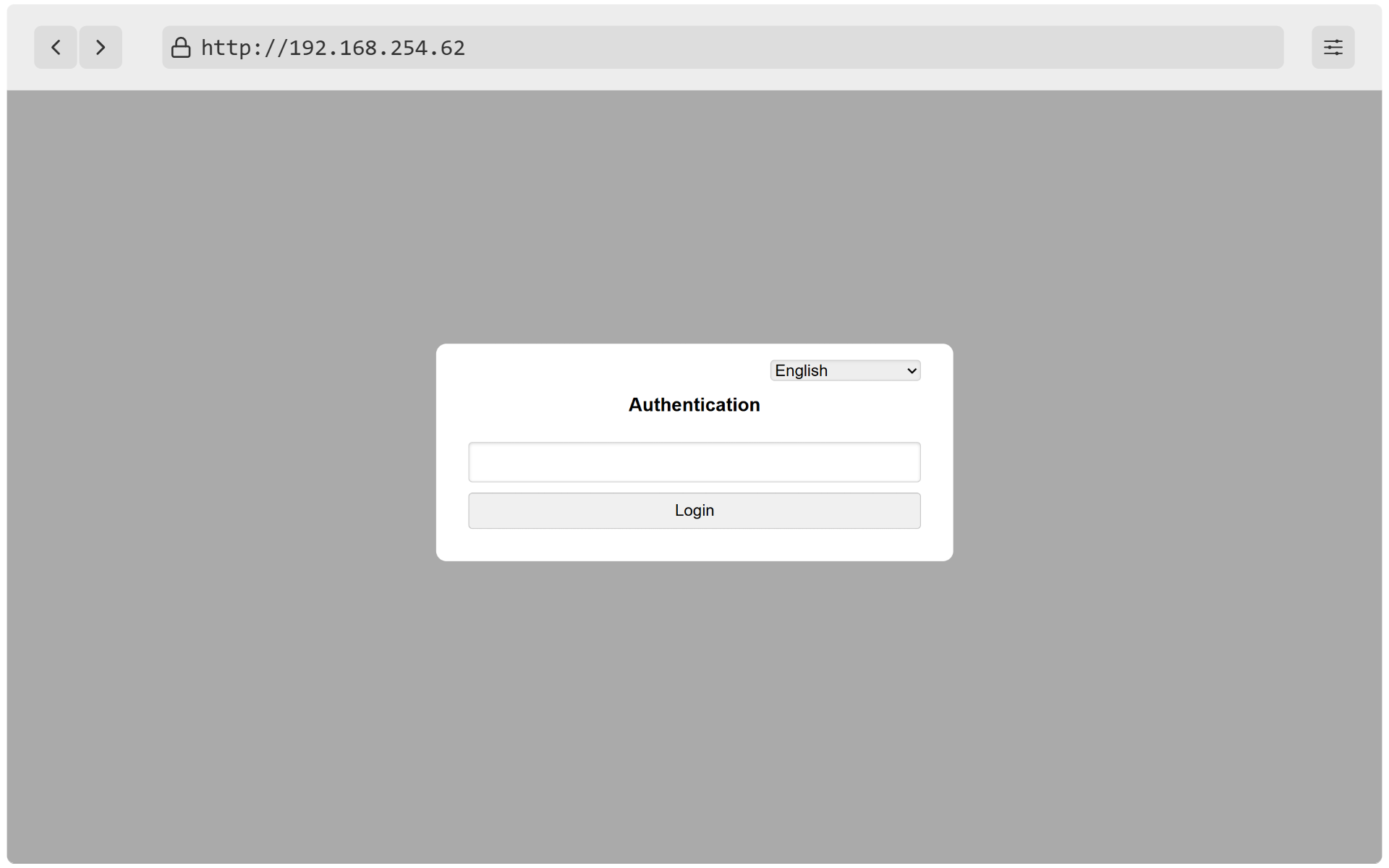
Click into the address bar at the top of the browser window (where the website URL usually appears) and type the IP address you obtained from the clock’s display.

Caution
Make sure to enter the IP address without leading zeros in each octet (e.g., display shows 068 → enter
68, display shows 000 → enter0)!
Press
Enteron your keyboard.The Authentication screen will appear. Enter the default password:
mobatime, then pressLogin.