

Firmware update via web server#
Click here to download the latest firmware file - version r8.25
Install TFTP server (e.g.
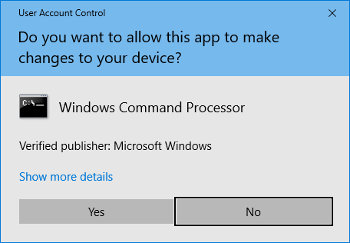
tftpd32).Allow access in Windows security window after opening TFTP server file.
Place the firmware file named
device.updto folder from which your TFTP server serve files.Open the web interface of the digital clock you want to update.
In web interface, Navigate to Command tab.
Set the field “Firmware update” to “Perform update over TFTP” and click on “Apply”. Update will be invoked.
In dependence of your TFTP server, information about update progress is displayed.
Wait about 1 minute after firmware download.
Check whether the firmware version is correct.
Note
If the firmware version is not correct, it is necessary to repeat the procedure.