

Weekly Overview — Employee#
Basic Description#
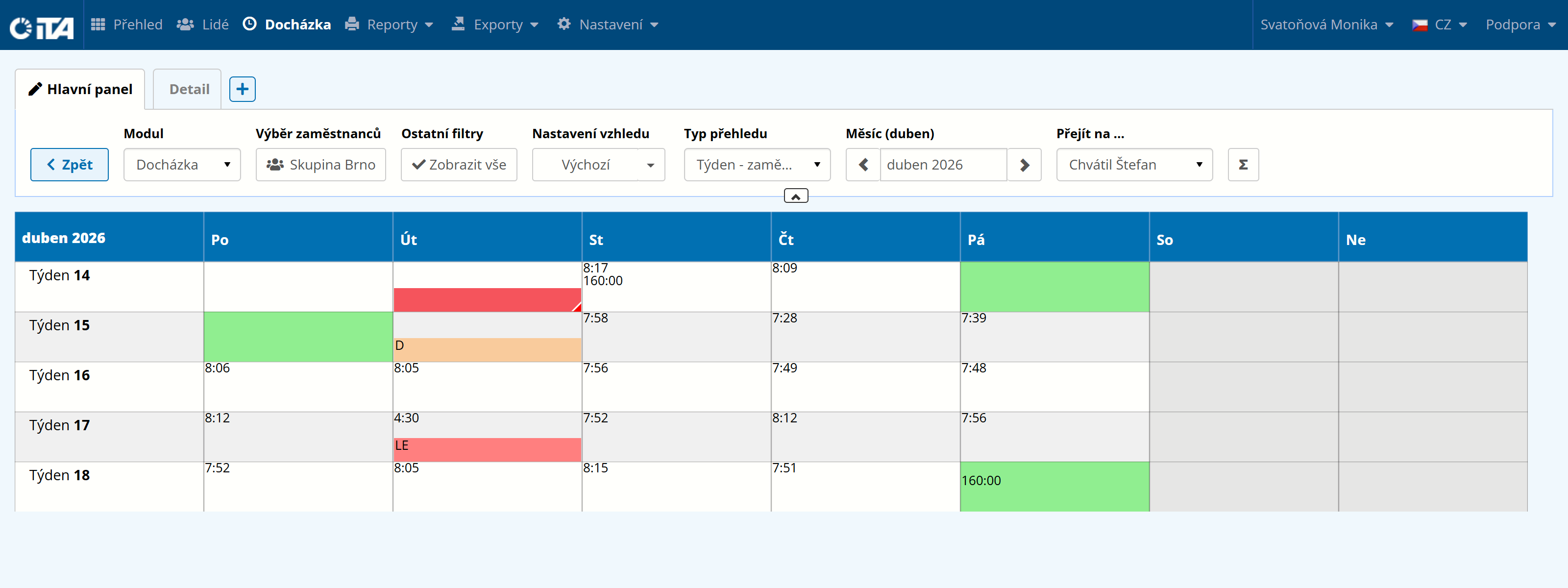
Displays a weekly attendance overview for one employee within a specific month. Weeks always start on Monday and end on Sunday.
If a week is split across two months, the days from the neighboring month are included. For better clarity, days (accounts) such as sick leave, vacation, working from home, etc. are color-coded. A red cell indicates a work rule violation.
Module Attendance | Overview type Week — employee | Month (month) any | Go to … any
Viewing Statistics#
∑ Function (Statistics)#
To display an employee’s statistics, select the desired day in the main table. To select multiple days or weeks, hold the Ctrl key while selecting, or simply hold down the left mouse button and drag across the desired selection.
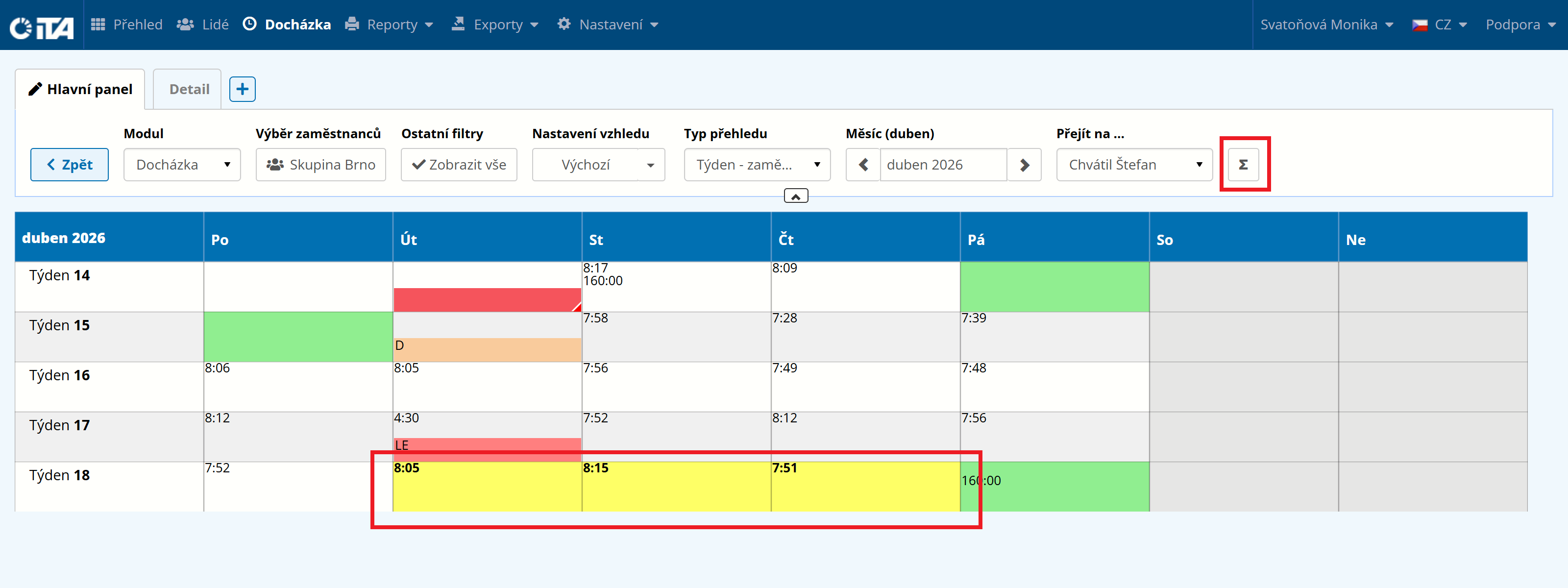
The statistics show:
- Overview:
a quick overview of violations, the work schedule, and time worked.

- Balance:
an overview of the accounts in use, tracking various facts — vacation, night work, sick leave…

- Absence:
here you can see when employees were not at the workplace and why.

- To Be Resolved:
displays violations of work obligations for the selected period.

- Records:
a summary of records for the selected period.

- Approval:
lets you view approved requests for the selected period.

Editing Attendance#
To change a value (edit it, approve a violation…), select the cell in which the change is to be made and right-click it. You can select a single specific day for a single specific employee, or any number of days.
If a single day is selected, the change is made for that day for the selected employee.
Make your selection in the following options table:
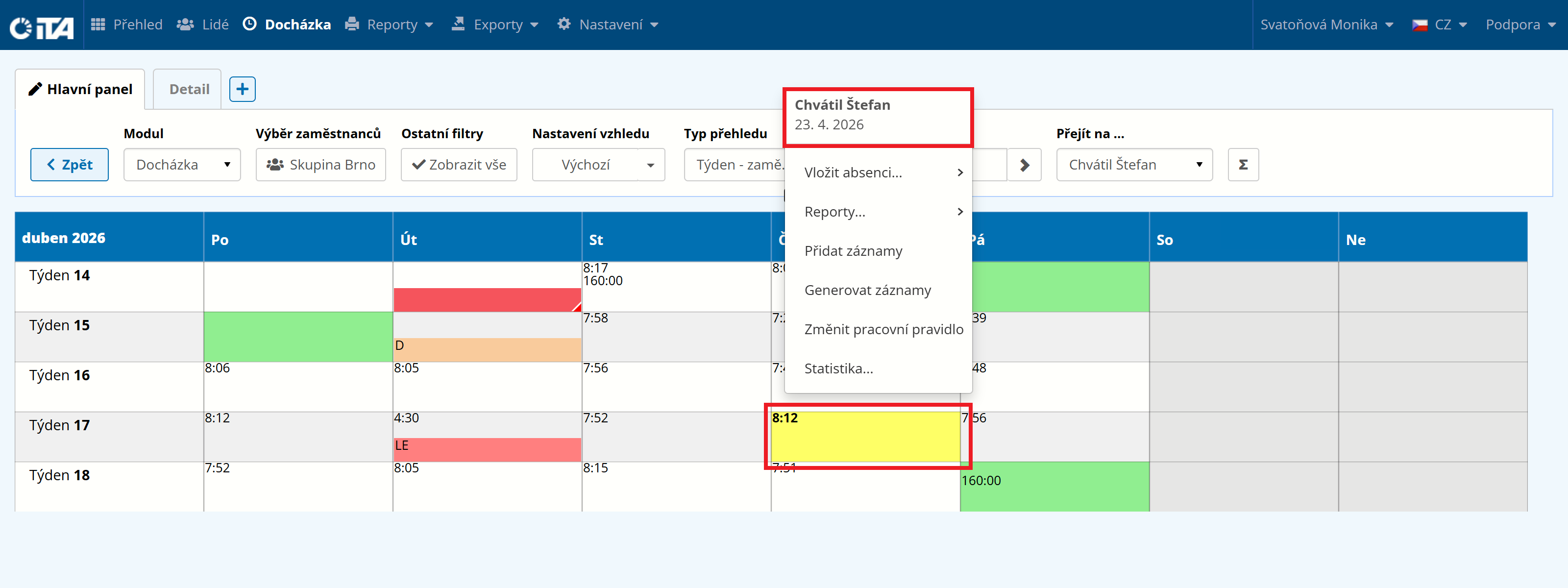
The first two rows show the name of the employee and the date on which the edit will be performed.
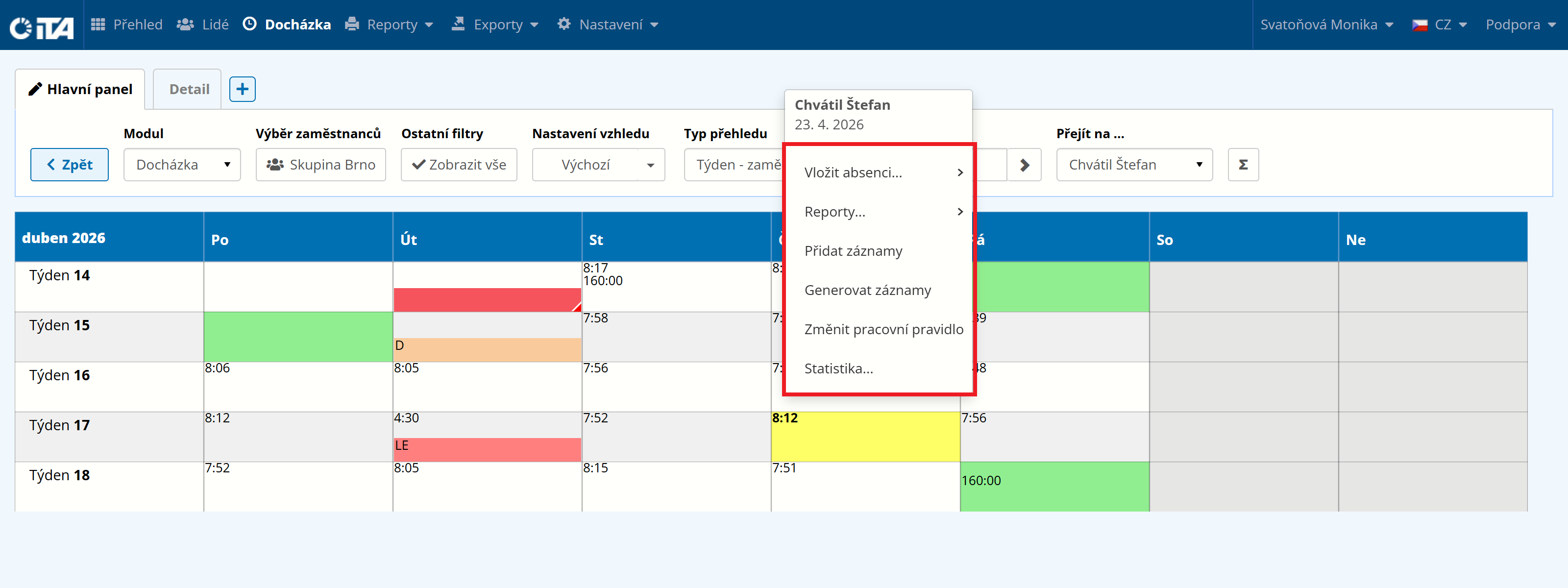
The next rows offer the available change types:
Insert Absence
Reports
Account History
Account Balance Correction
Add Records
Generate Records
Change Work Rule
Statistics
If a longer period is selected, the change is made in all selected cells. The information about the time period is shown in the first two rows.
When editing, always check carefully that the cell is correctly selected and that the values in the first two rows match the date and employee you want to edit.