
Organization#
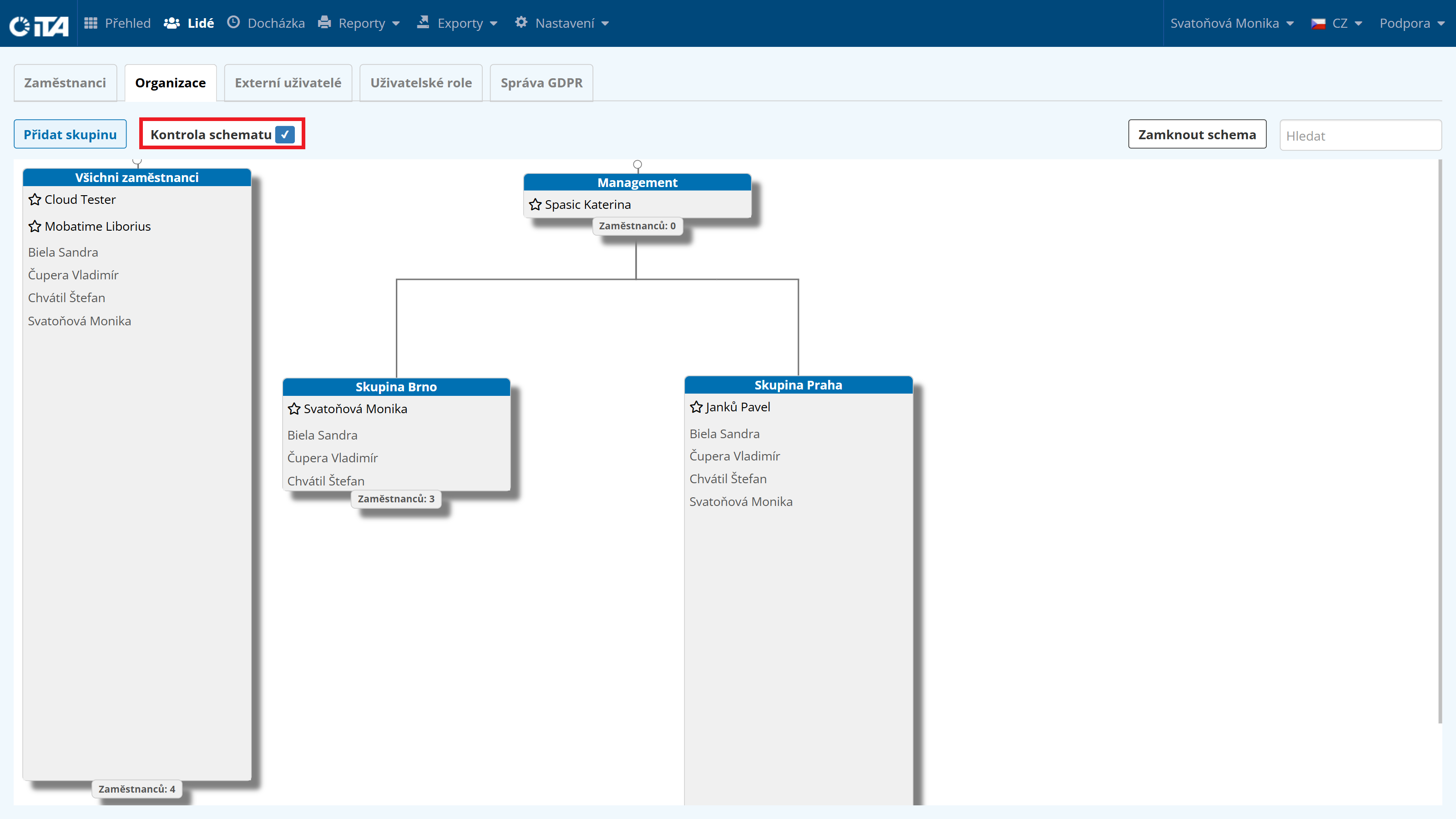
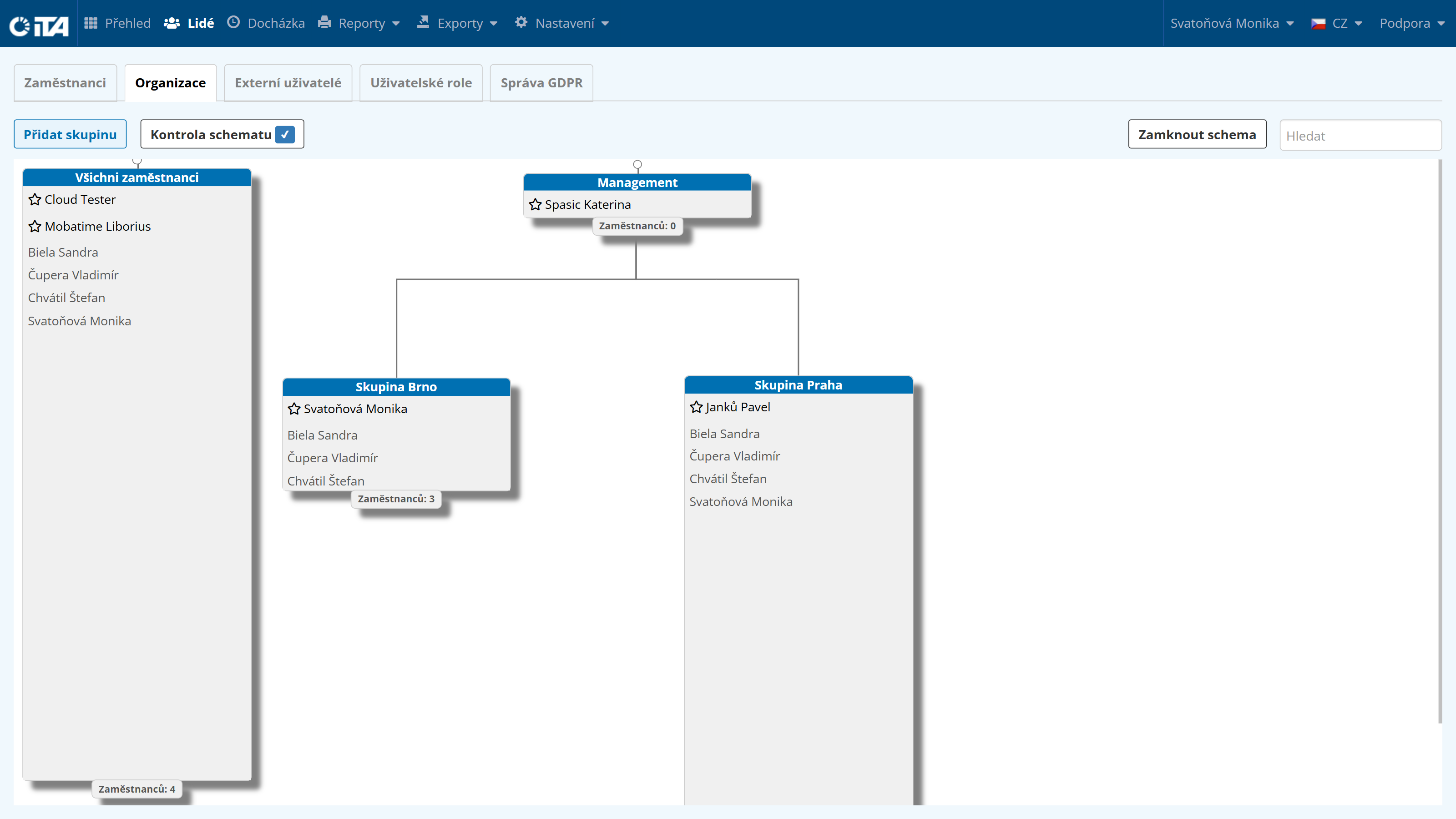
The Organization tab lets you split employees into groups for easier overview. A single employee can belong to multiple groups. These groups can be assigned group administrators with specific permissions. You can also build the company’s organizational chart: by linking these groups, you define parent departments and create a structure for multi-level approval of absences. Groups can also be independent of each other.
Creating a Group#
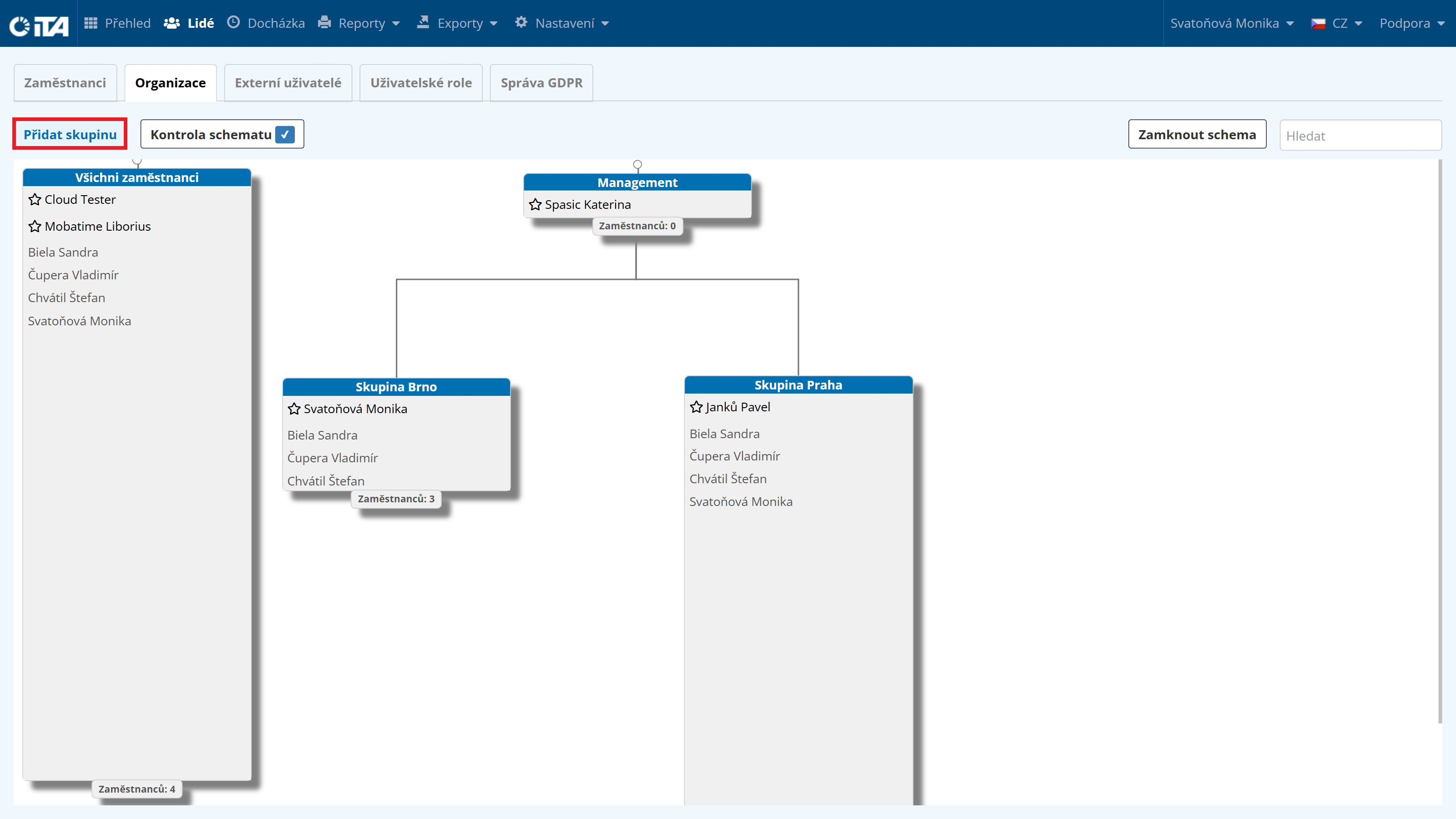
Click Add Group:
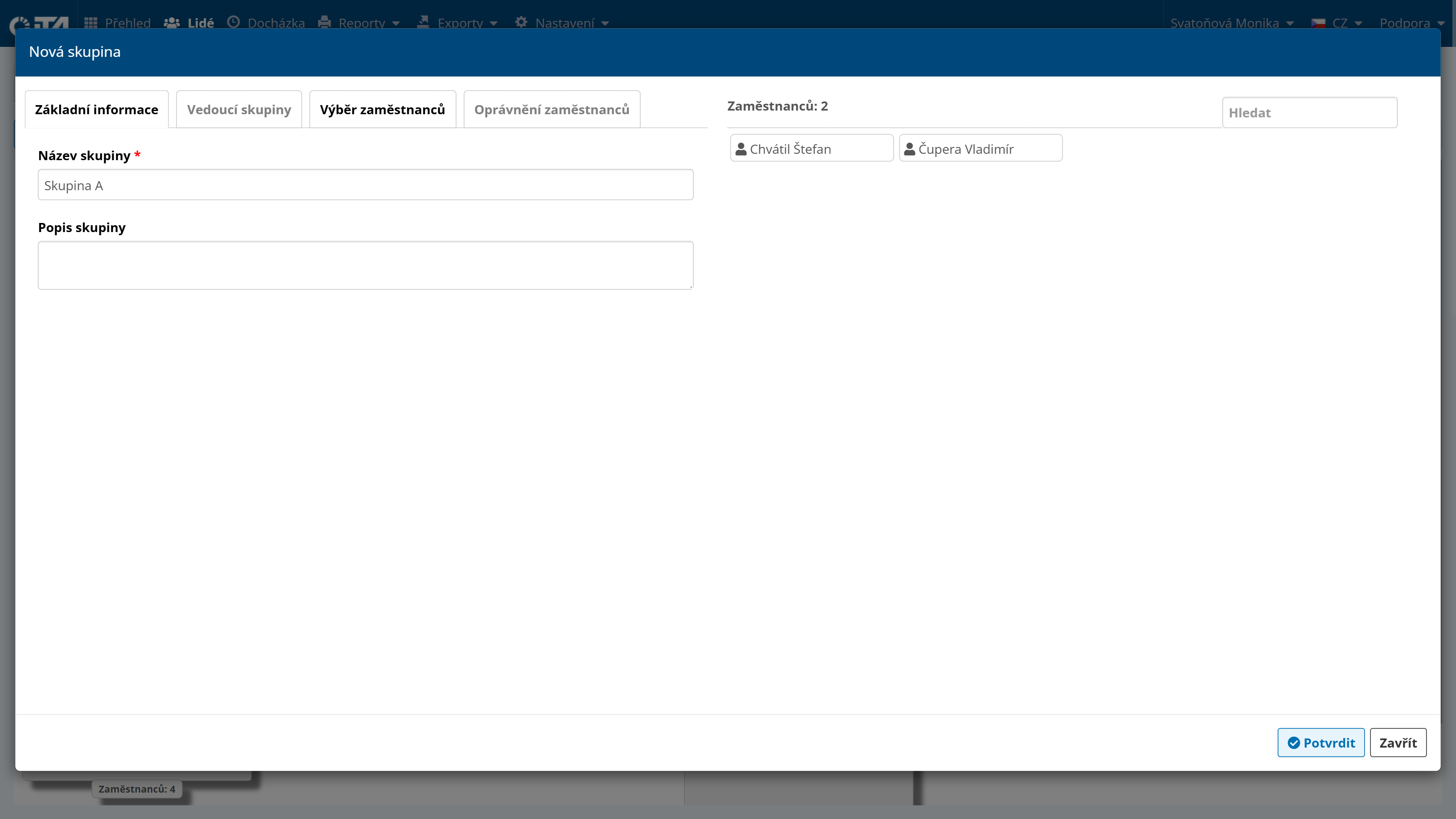
Fill in the basic information:
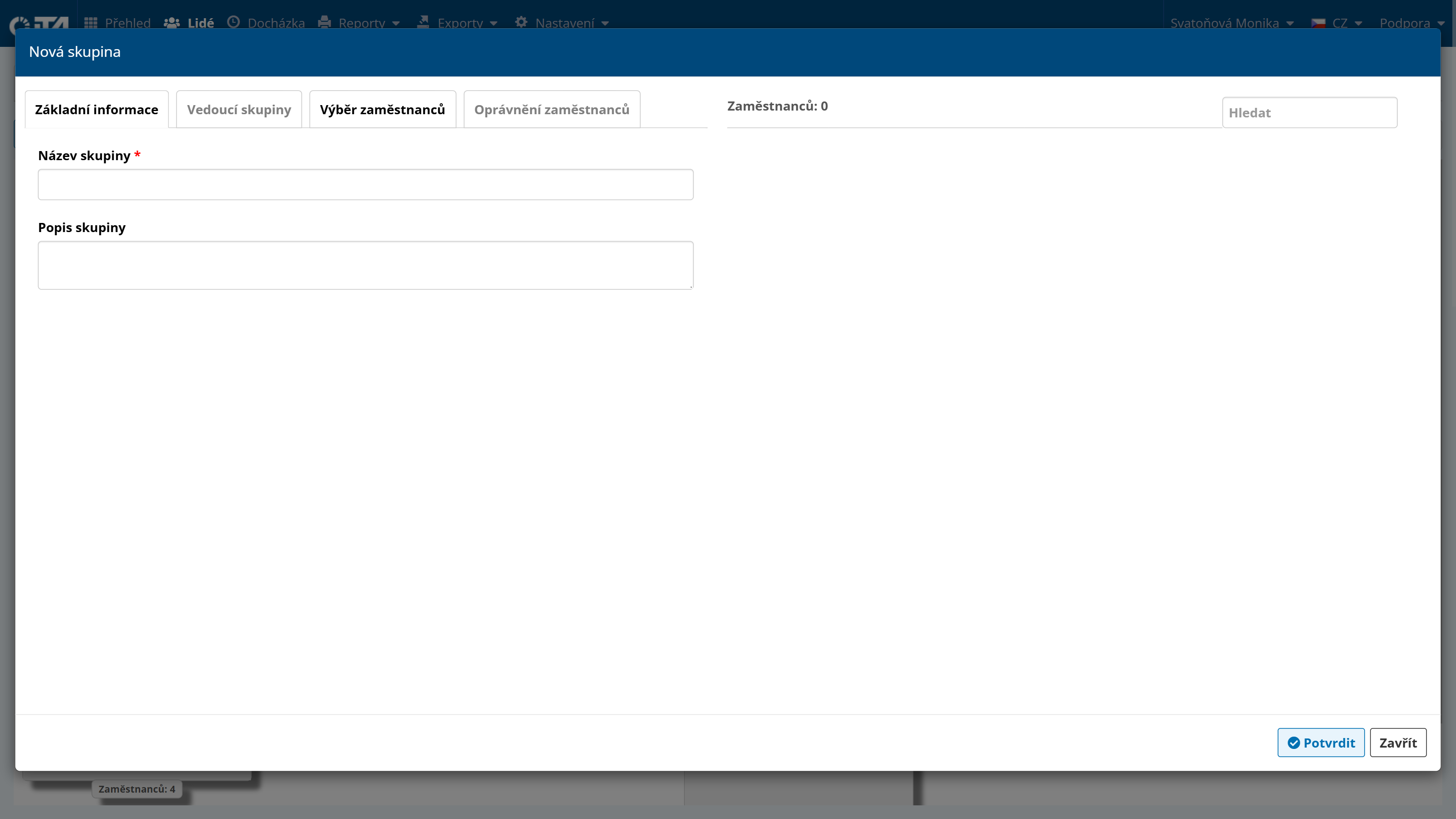
1
Fields marked with * are required.
Assign a group leader and their permissions:
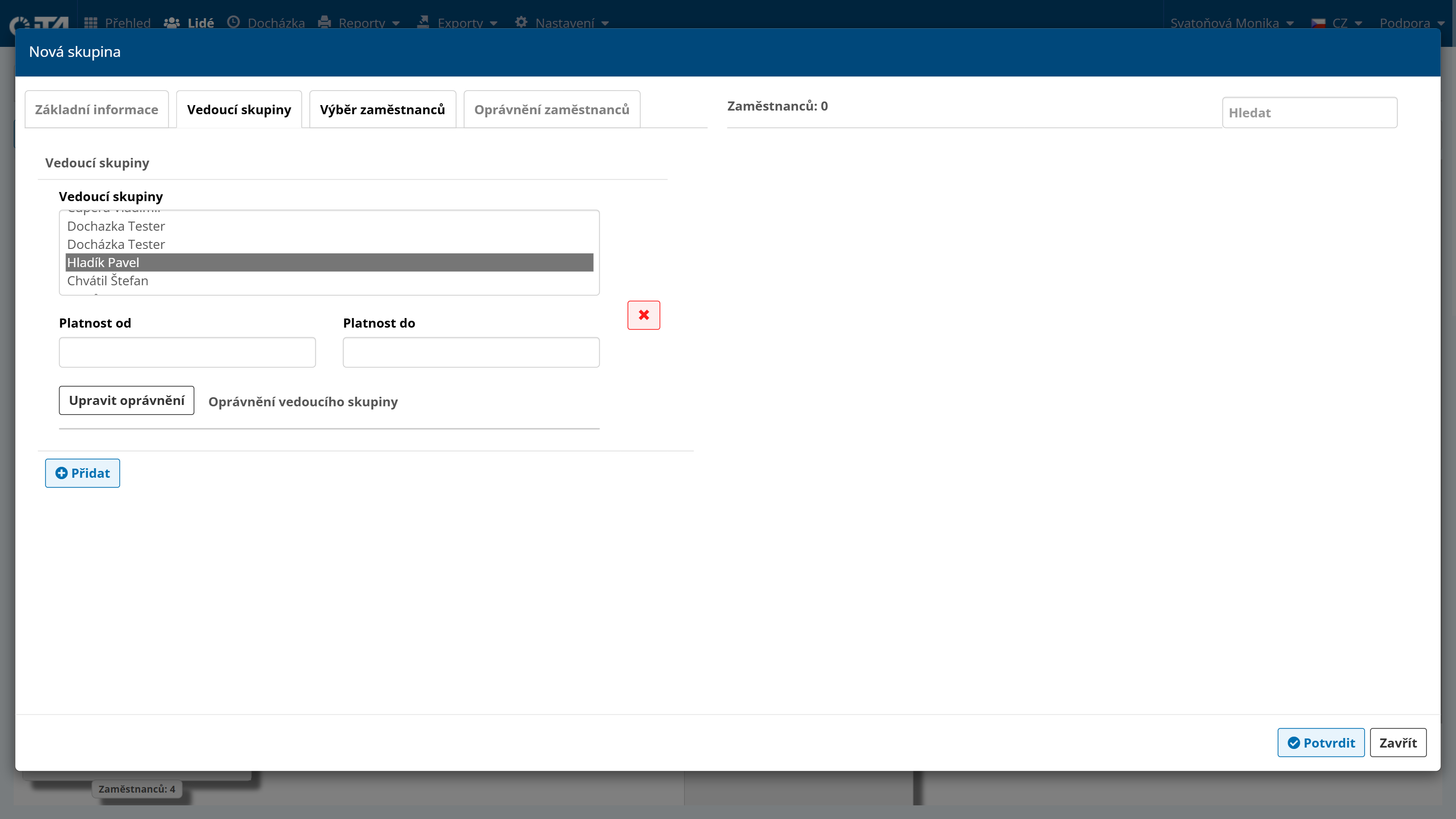
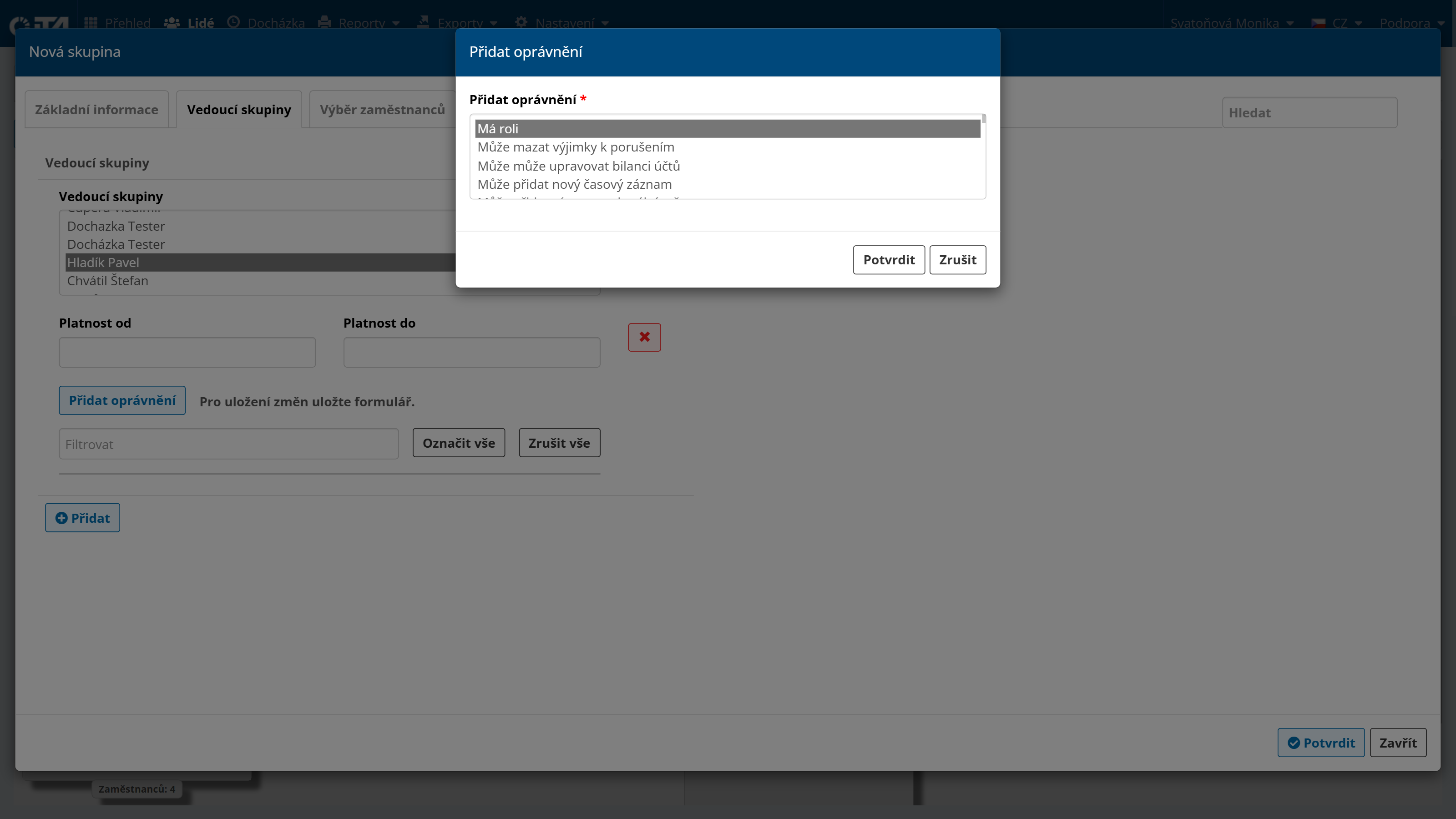
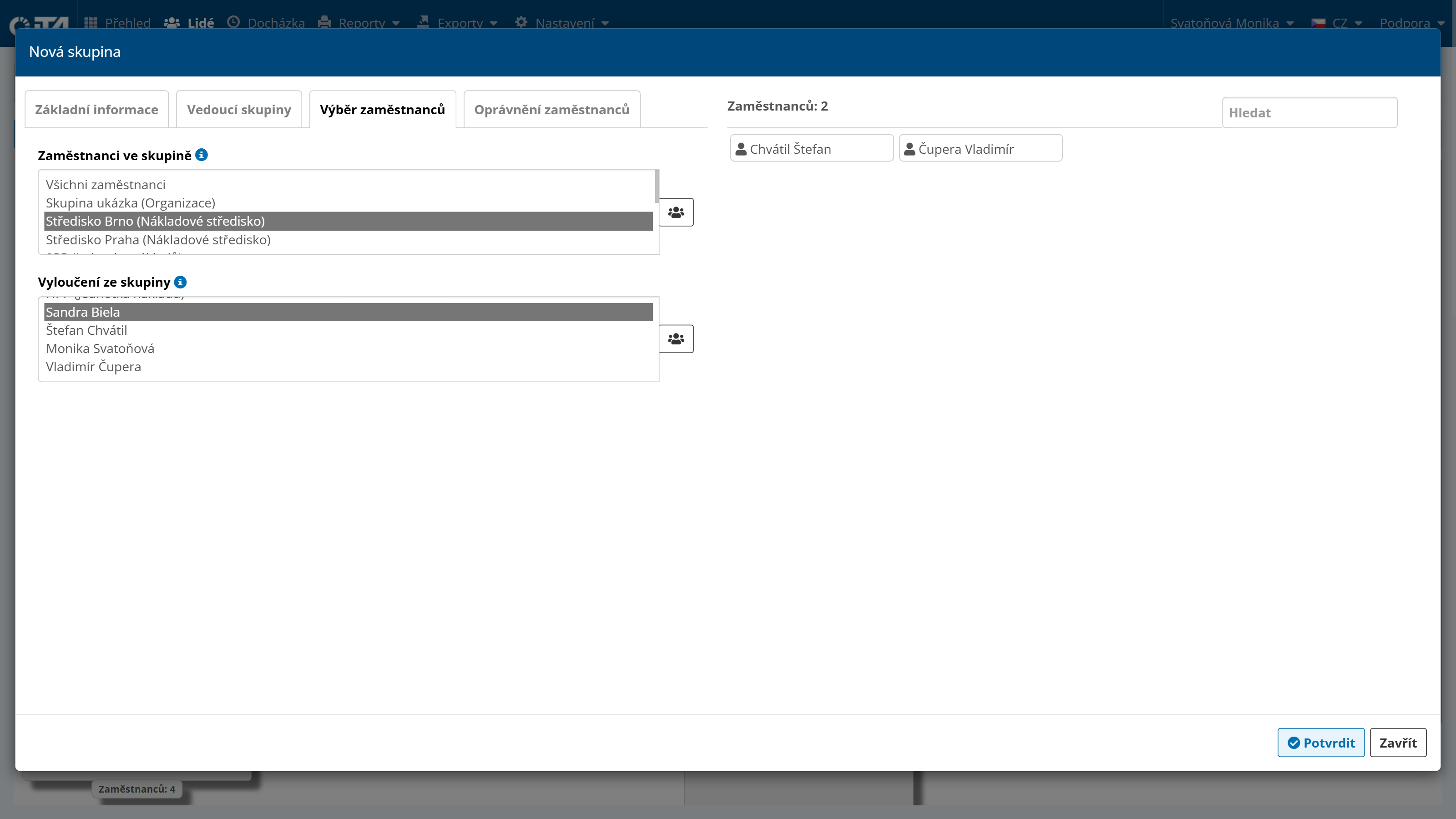
Select the employees who belong to the group:
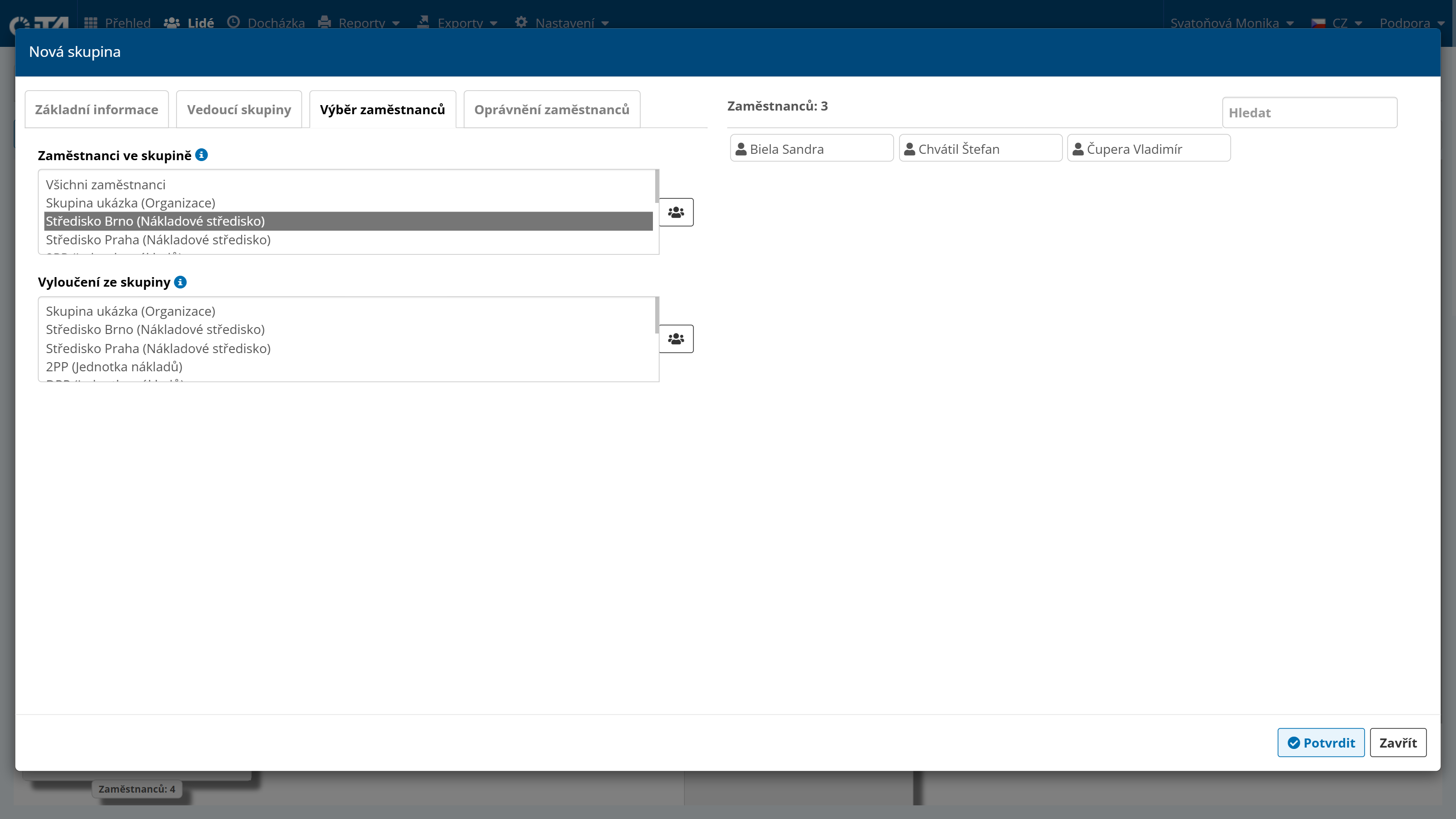
At the same time, select employees who will be excluded from the group (useful when you add an entire department to the organization but want to exclude specific employees from it):
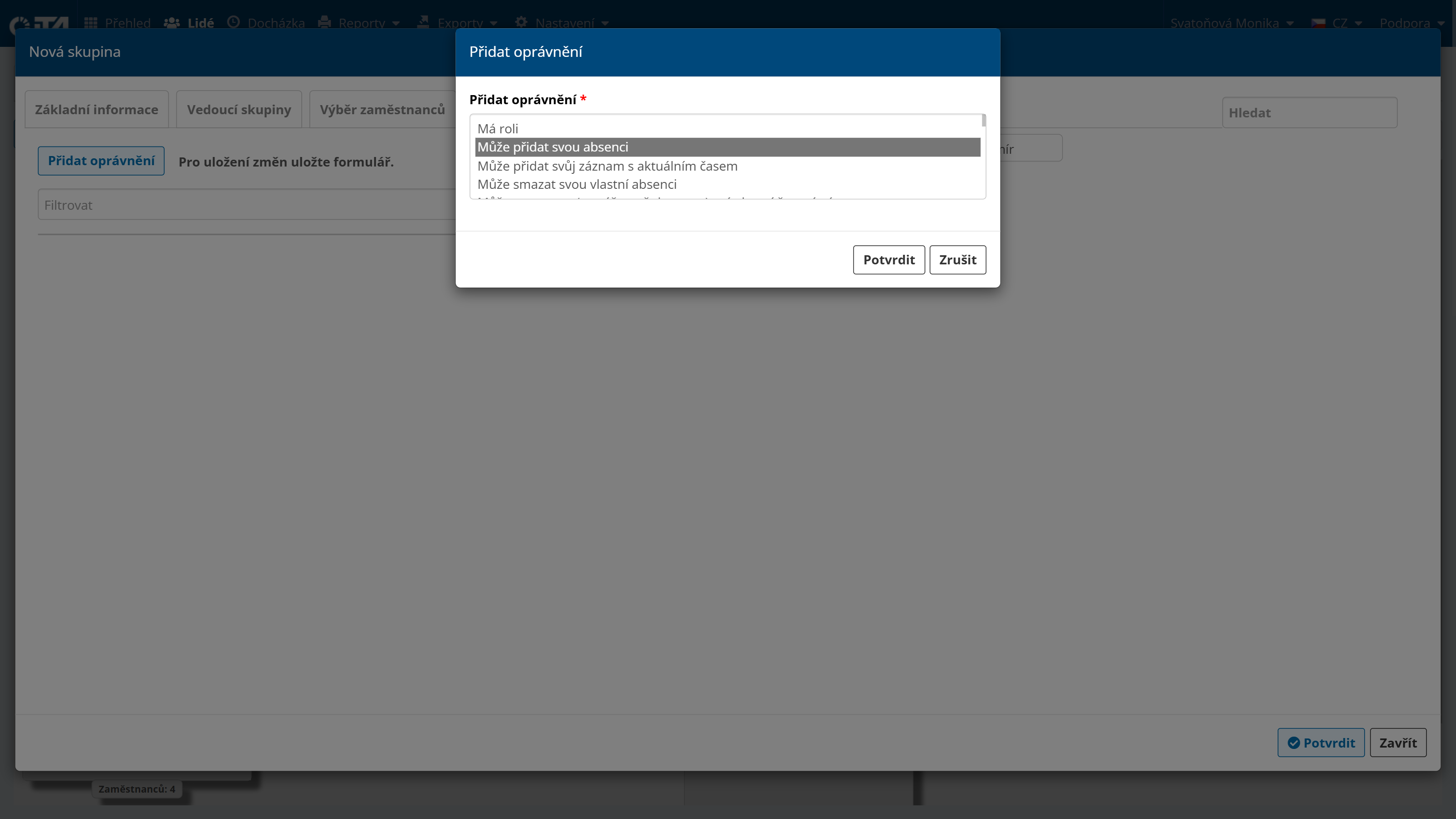
You can also adjust their permissions within the group:
Click Confirm:
Schema Check#
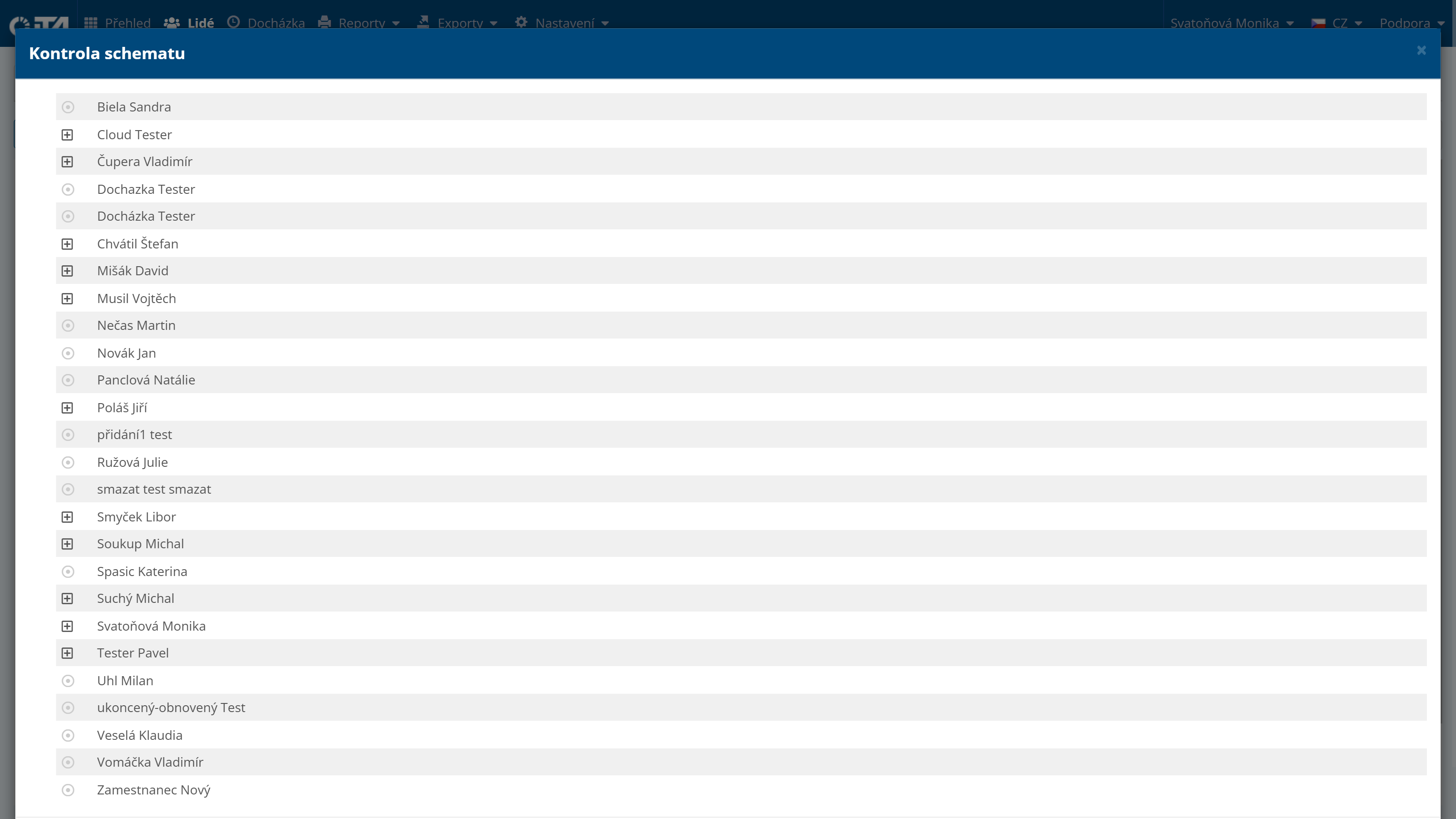
The Schema Check verifies that everything is configured correctly — for example, in the case of multi-level absence approval (whether employees and their supervisors have correctly configured profiles for the whole schema to work properly).
Click Schema Check ✔.