
Work Rules#
→
Work rules define employees’ working hours, working time, obligations, and other conditions used to evaluate attendance. Here you set the specific requirements placed on the employee and how their violations are reported. Once configured, the system monitors the rules for each employee and highlights any violations in the overview.
Types of Work Rules
- Daily extended work rule:
a daily rule extended with the working time and absence features
- Daily simplified work rule:
a daily rule intended for employees with flexible working hours
- Daily rules switcher:
enables automatic switching between, for example, morning, afternoon, and night shifts
- Weekly:
differentiation of working time for individual days of the week (e.g. government offices); this rule may only contain daily extended work rules
First, configure the individual types of daily rules, which are then used as the basis for the weekly rule. The weekly rules created in this way can then be assigned to individual employees. The configuration of a daily rule is highly comprehensive. Within a daily rule, you define:
name
work obligation
flexible working time
core working time
breaks
overtime
allowed presence at the workplace
unpaid working time range
paid working time range
ignored time
reporting zones
absences (extended work rule)
public holiday settings
day-start settings
rounding
There is no need to configure shortened or part-time workloads — these can be specified by setting the employee’s workload as a percentage: 6h = 75%, 4h = 50%.
Procedure for a Daily Rule#
Create an inventory of all the daily rule types you will apply in your company.
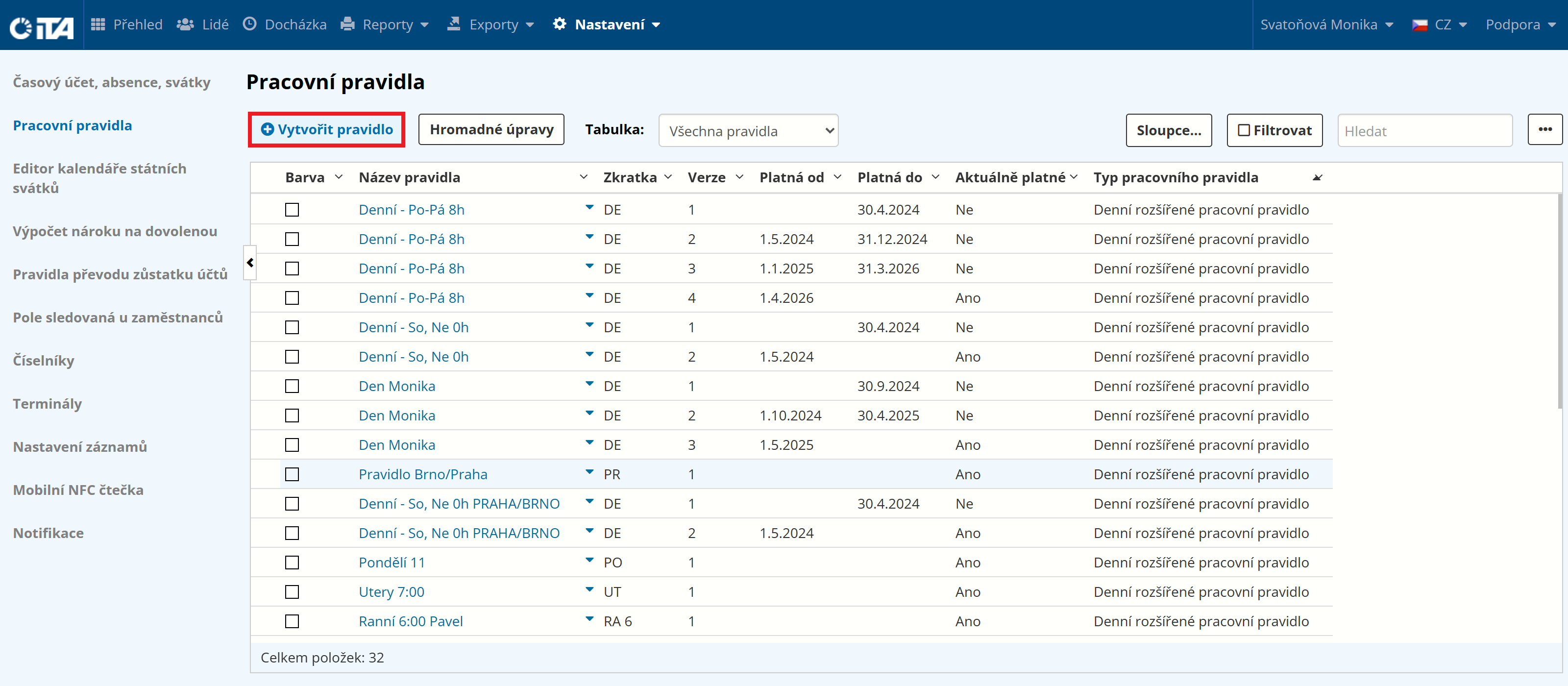
Click Create Rule:
Fill in the parameters:
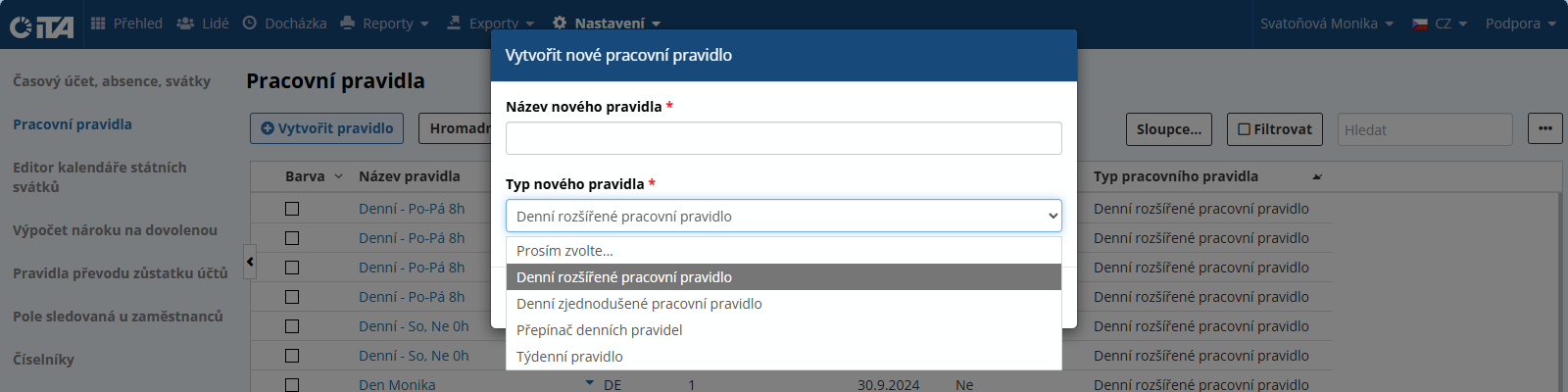
- New rule name:
Name the rule (we recommend short names, e.g. Daily 8h, Daily 6h, Morning Shift, etc.)
- New rule type:
Select Daily extended work rule or Daily simplified work rule
Click Confirm.
Rule Configuration#
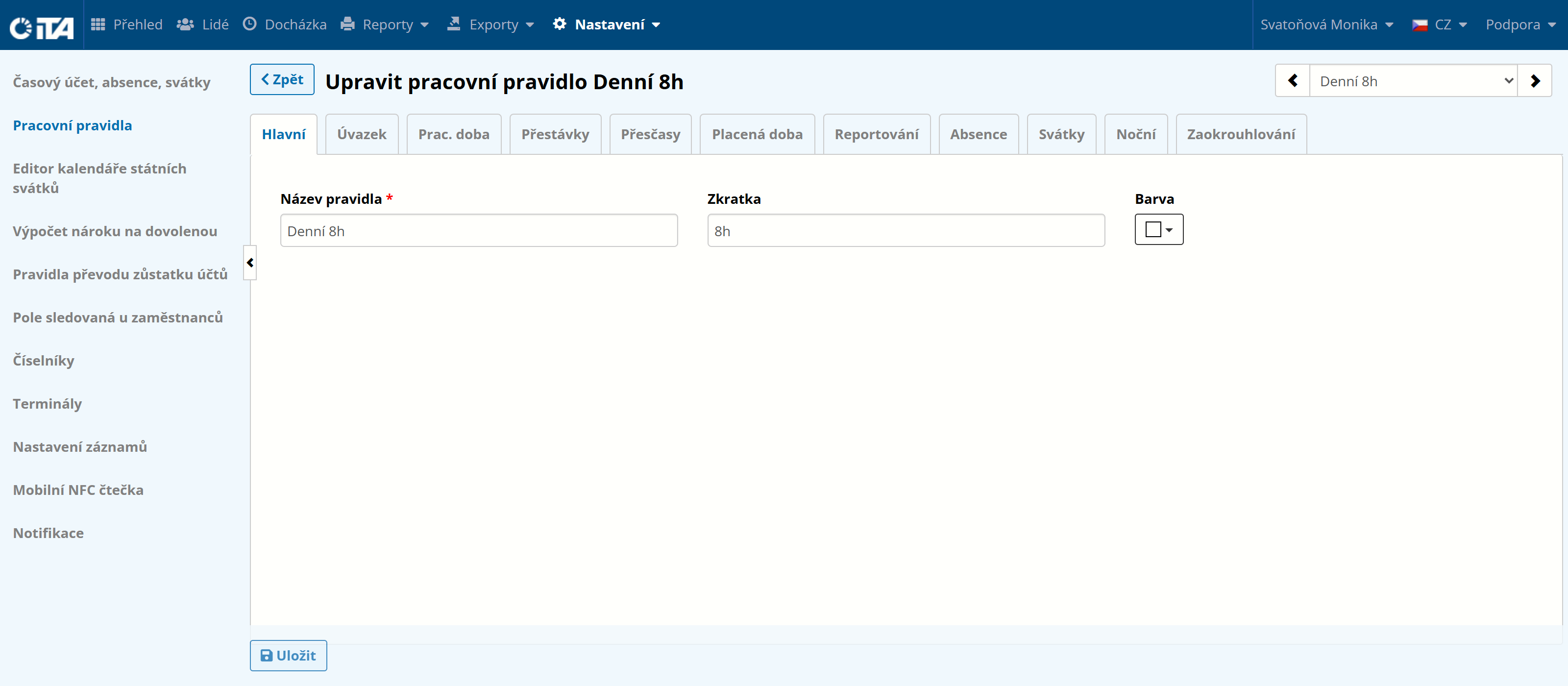
A rule is configured on the tabs described in the following chapters.
After configuration, save the rule by clicking Save.
Main#
Parameters#
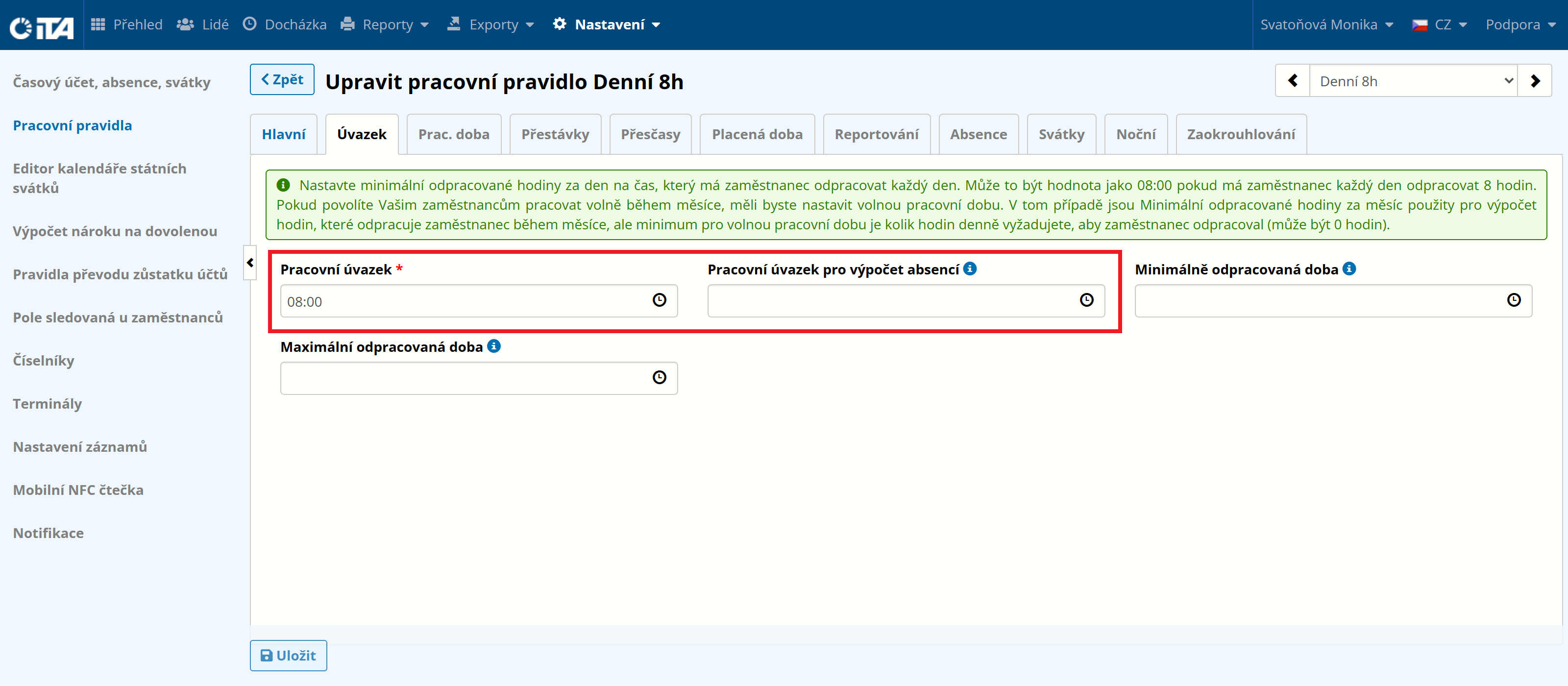
Workload#
Defines the total required time spent at the workplace per day, excluding the break.
1
Example:
Workload 8h = work obligation 8:00.
If the workload used for calculating absences is also 8h, the Workload for Absence Calculation field can be left empty.
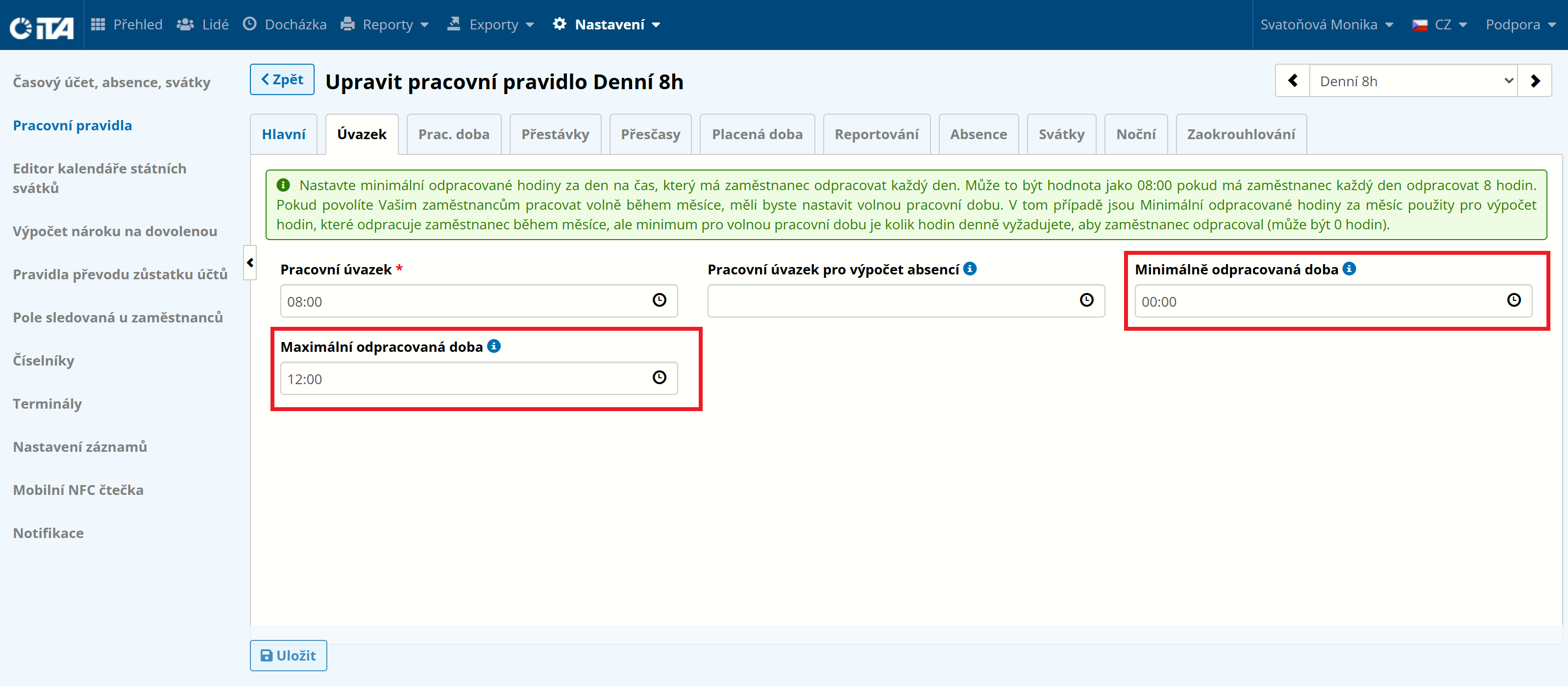
Flexible Working Time#
If the employee works flexible hours, their daily work obligation must be adjusted. The work obligation is configured based on the employee’s defined workload, while the minimum hours worked corresponds to the minimum number of hours the employee must spend at the workplace each day.
This value can even be zero — in that case, meeting the daily workload is not checked by the system day by day, but only at the end of the month.
1
Example:
An employee has an 8-hour work obligation plus a 40-minute break but works flexible hours.
The employee must be at the workplace for at least 3 hours per day, so the minimum hours worked is 3. At the same time, they should not be at the workplace for more than 12 hours, which defines the maximum hours worked.
At the end of the month, the system evaluates whether the totals of hours worked across individual days match the 8h/day workload.
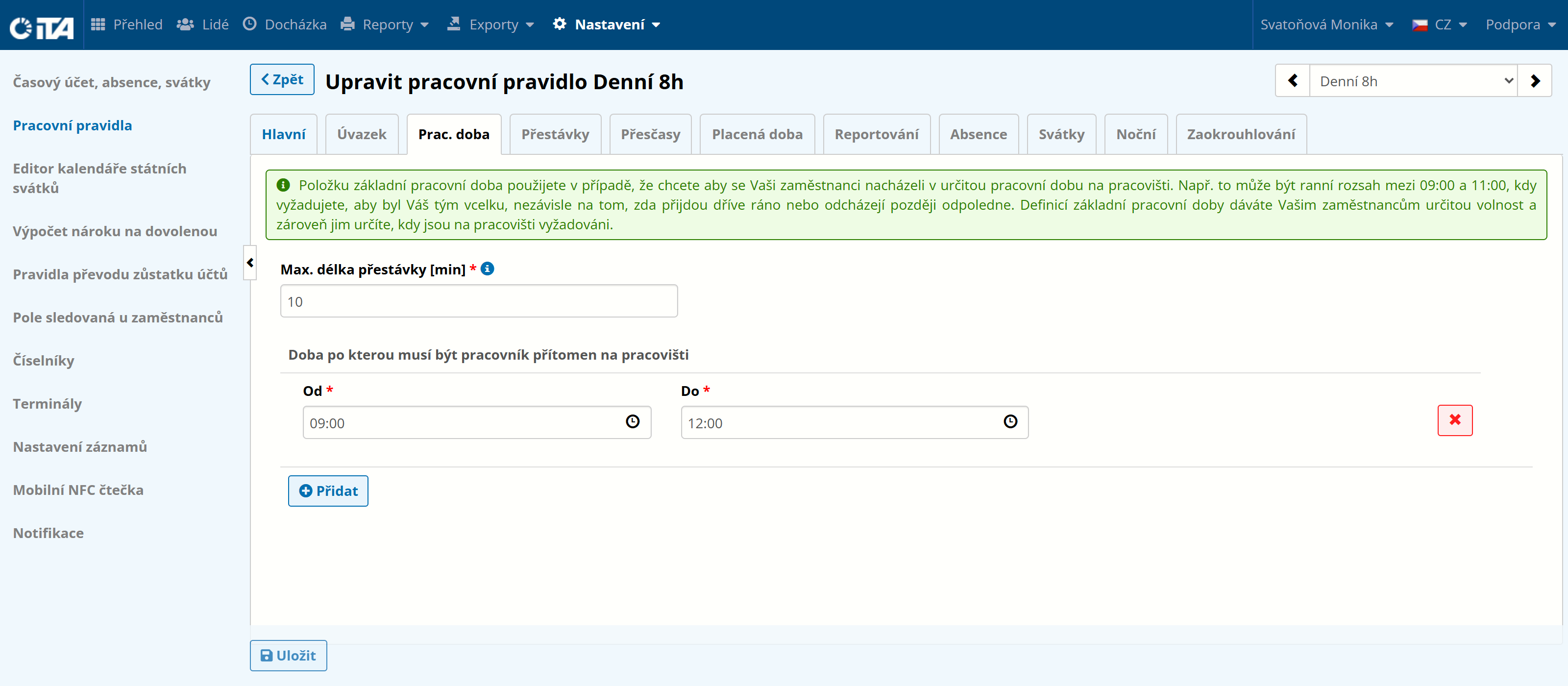
Working Time#
The core working time defines the time when the employee must be present at the workplace. It defines the time during which the employee — regardless of whether they have flexible hours — must arrive at the latest and leave at the earliest, and cannot be absent.
In this section, you also enter the duration of breaks that are not counted toward paid time worked.
1
Example:
A maximum of 10 minutes is deducted from the employee’s hours worked, and they must be at the workplace from 9:00 to 12:00.
Breaks#
During working time, employees take prescribed breaks. The way breaks are taken and deducted can be configured in different ways. A break can be:
- Defined:
at a given time interval, of a defined duration
- Calculated:
depending on the time worked
Minimum length of each work interruption — ensures that each break lasts at least the configured time. If a break is shorter, the remaining time is deducted from the hours worked.
Defined#
By setting the break type to “Defined”, you can set the time when the break must be taken and its duration. A defined break can also be either floating or fixed.
List of Defined Floating Break Rules#
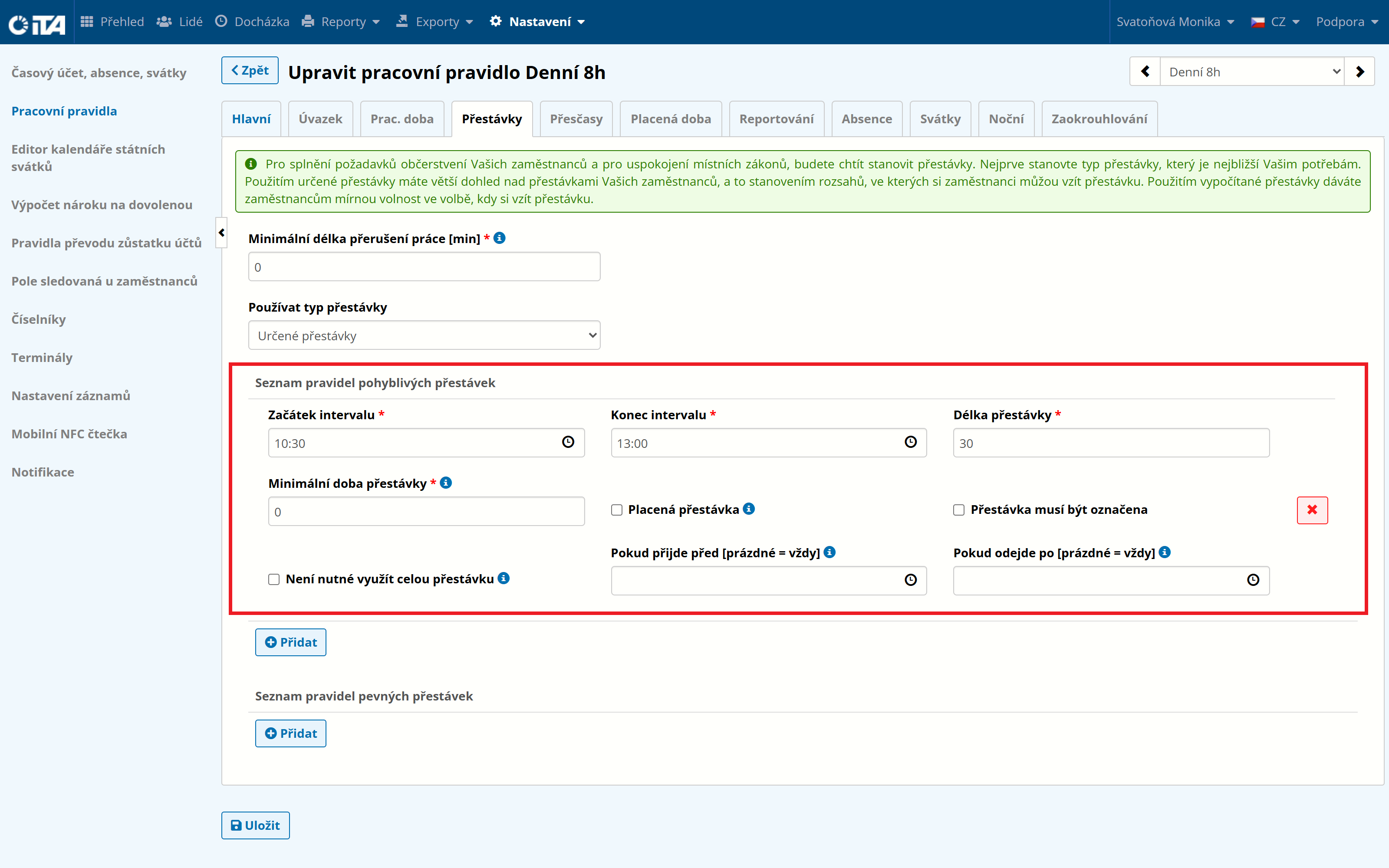
For a floating break, set the parameters of the interval in which the break must be taken and the break duration. The minimum break duration then defines the shortest length the break can have to be counted toward this interval. A break taken by the employee within this interval is counted as this break. If no break is taken, this break is deducted automatically.
1
Example:
A floating lunch break is in the range from 10:30 to 13:00, and 30 minutes are deducted.
List of Defined Fixed Break Rules#
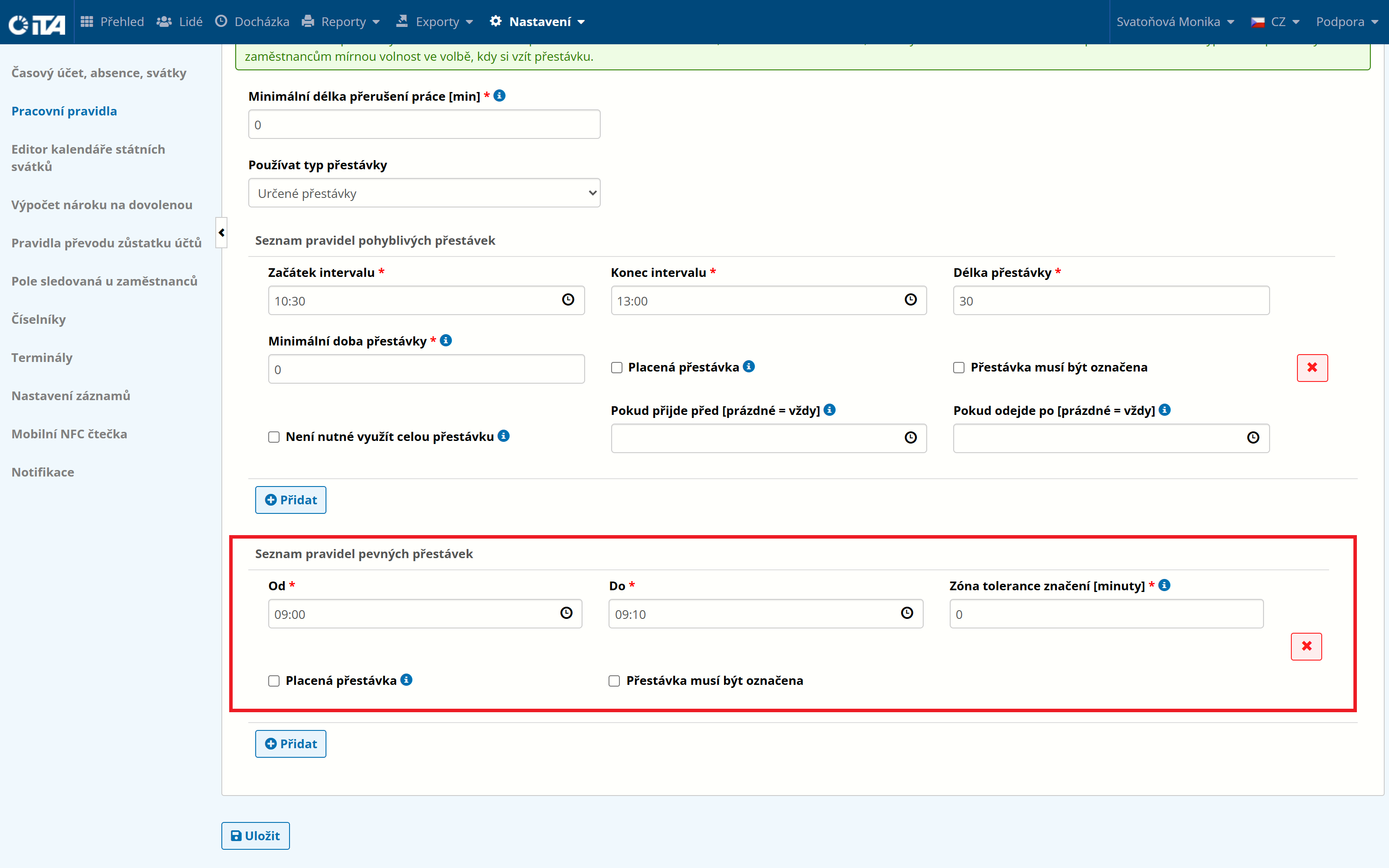
A fixed break defines a strictly given break time. There is no room for free break-taking.
1
Example:
A fixed break is set from 9:00 to 9:10, and 10 minutes are deducted.
Calculated#
Calculated breaks set their duration based on the time worked.
You must choose from the “Calculated Break Type” how the calculation is handled.
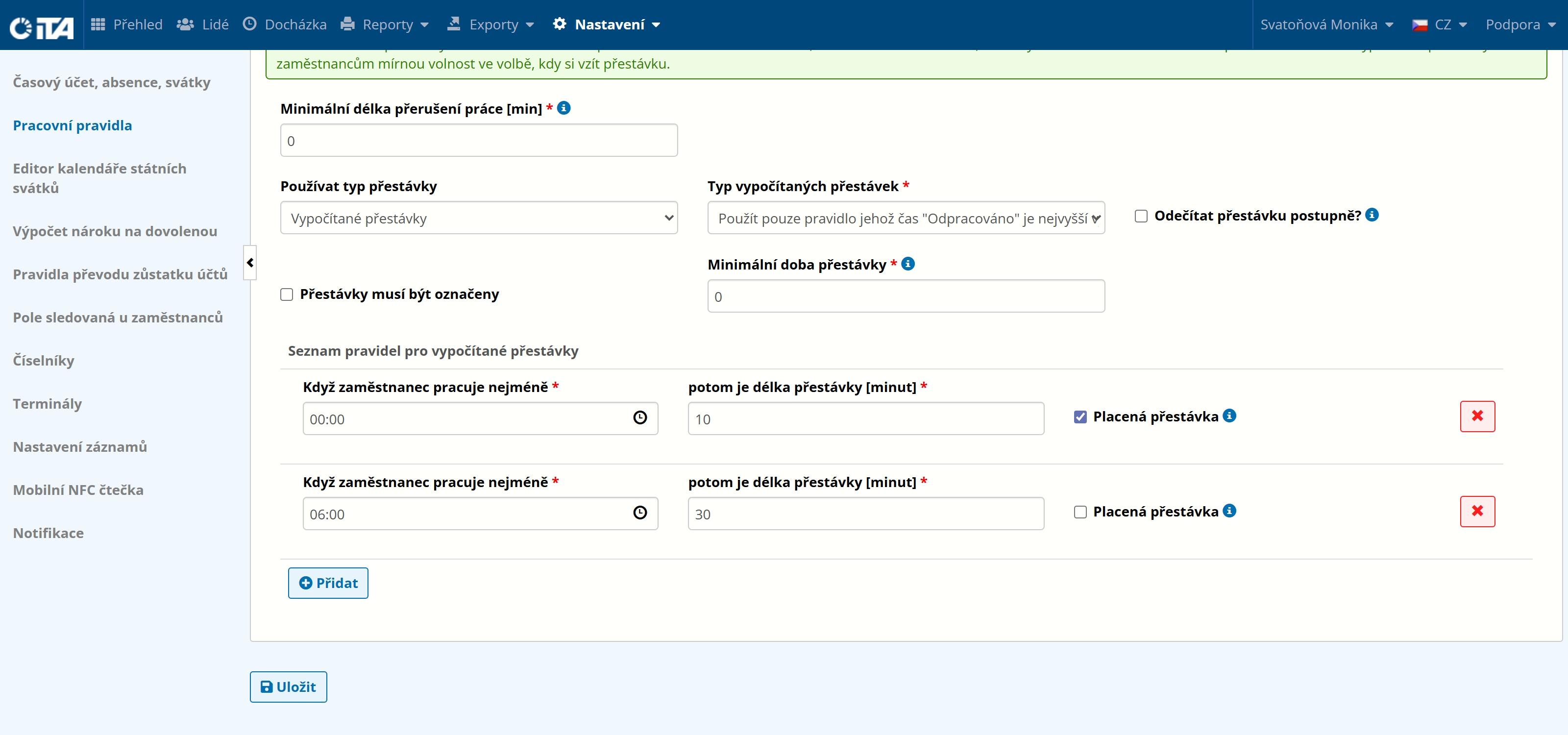
All rules matching the time worked are applied — in the example below, this means both breaks apply after 6 hours worked.
Apply only the rule whose “Worked” time is the highest matching value — in the example below, this means only the 30-minute break applies after 6 hours worked. If the employee worked, say, 3 hours, only the 10-minute break would apply.
Minimum break duration — the minimum duration defines the shortest length the break can have to be counted toward this interval.
1
Example:
After 3 hours worked, a 10-minute break is required. After 6 hours worked, a mandatory 30-minute break is required. Hours worked are counted from the employee’s first arrival at work that day.
Overtime#
List of Time Zones Considered as Overtime#
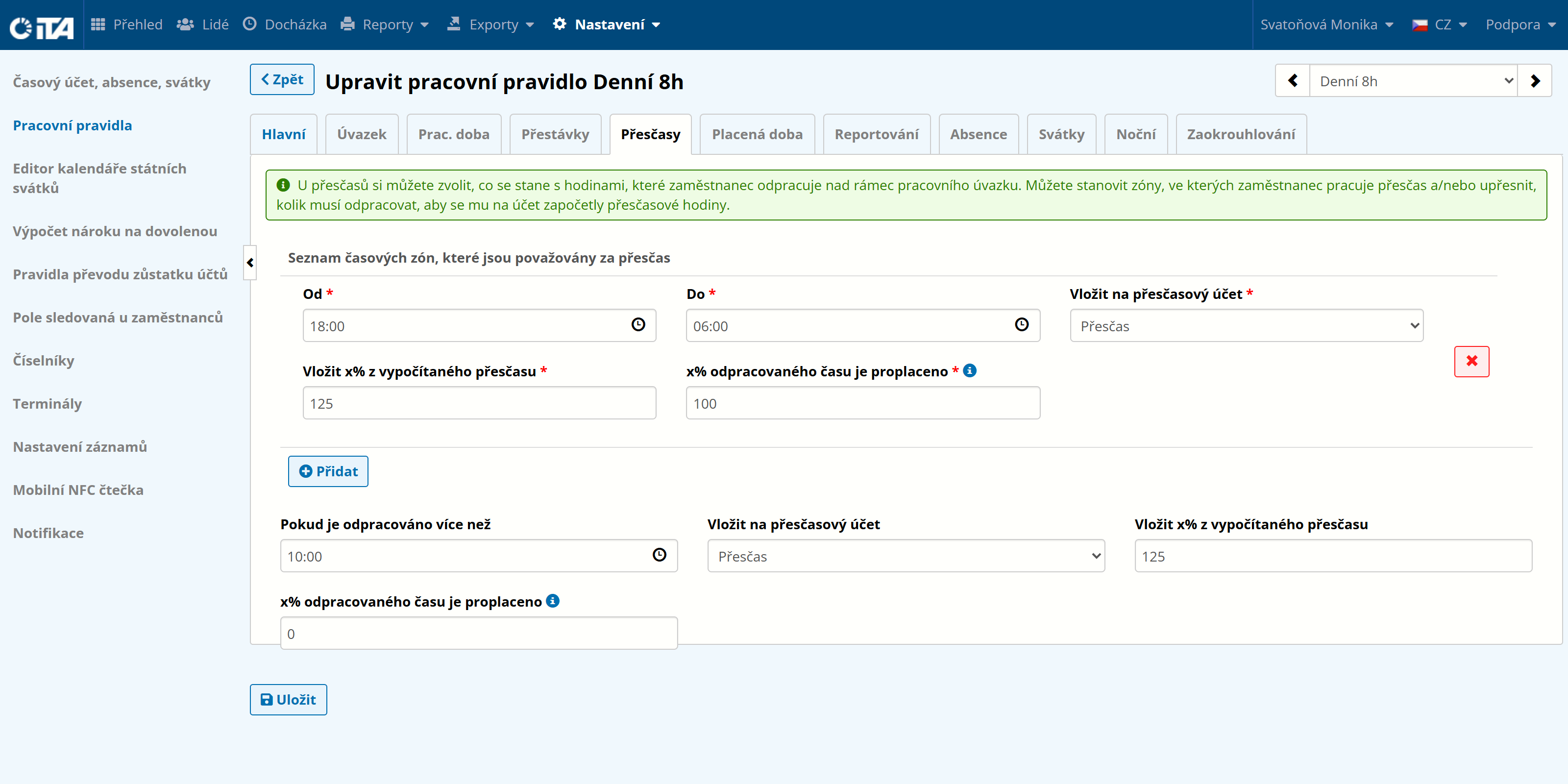
The list of time zones lets you configure individual time intervals during which time worked is considered overtime and is subject to a specific calculation — time when work is enhanced by some benefit. This time is recorded in the corresponding overtime account.
Add to Overtime Account#
This function defines the target overtime account on which time worked in the selected interval is recorded. You can distinguish between an overtime account for night work, weekend and public holiday work, and so on.
Add x % of the Calculated Overtime#
Overtime work is ultimately reported on the selected account. This information can be evaluated and compensated when calculating the employee’s payroll. One compensation option is to provide a benefit by increasing the hours worked when those hours were worked during overtime. The increased hours can then be taken as compensatory time off, or paid out at the standard rate without a premium — the premium being delivered as additional hours in the system.
1
Example:
The employer provides a +25% overtime benefit when more than 10 hours are worked in a row. This means that for every additional hour worked above 10 hours in a row, the overtime hour equals 1h 15min, and this time can be used as compensatory time off or paid out.
At the same time, the employer provides +25% overtime when working between 20:00 and 23:00. I can choose how to handle hours worked in this range — I select the account on which this time will be recorded and, optionally, the size of the benefit provided.
In this example, the benefits do not exclude each other; instead, they accumulate to the employee’s advantage.
Paid Time#
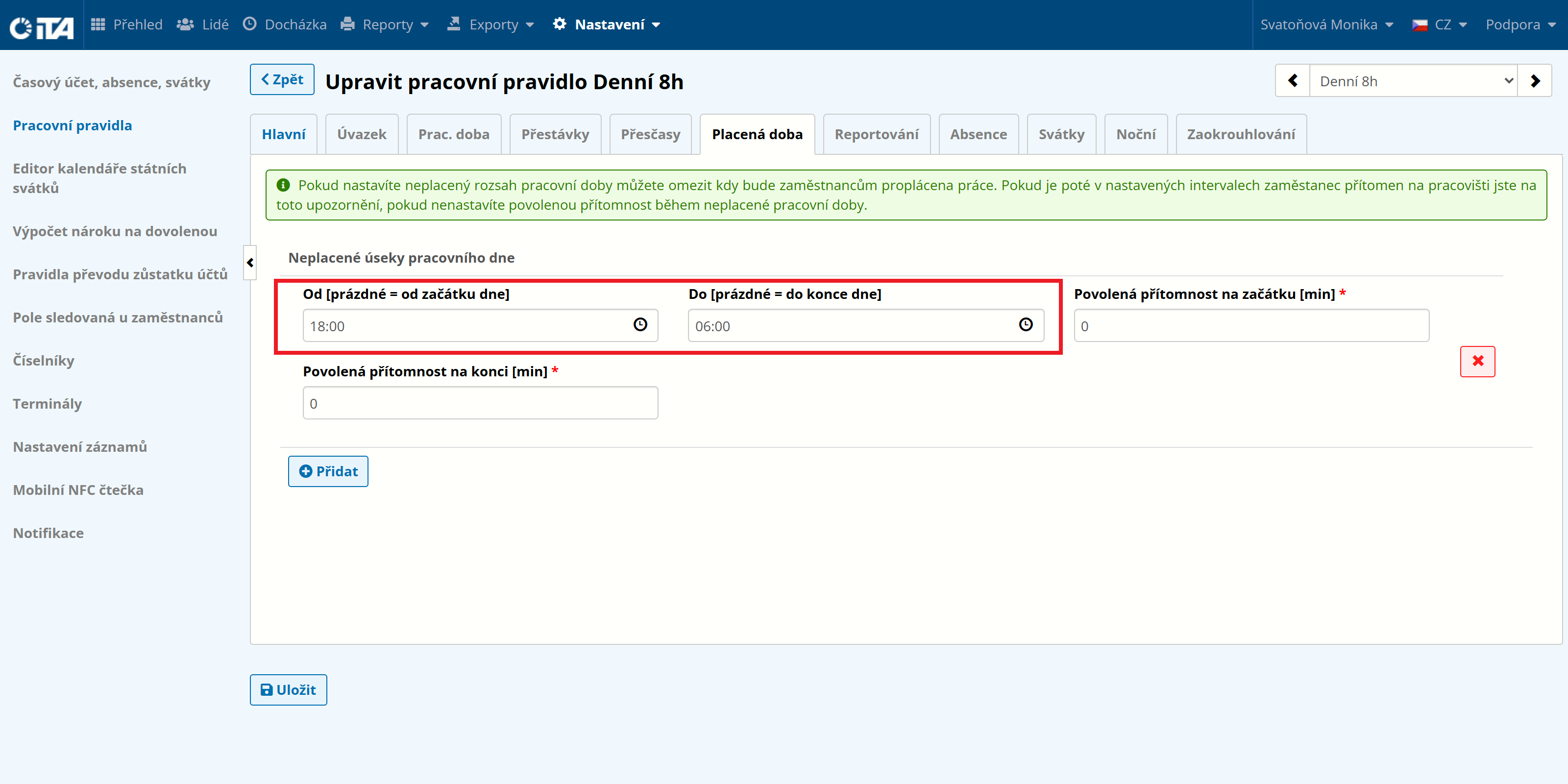
Unpaid Working Time Range#
You can also record working time only during a desired range. This function lets you limit the time during which the employee is paid at work — the time that is registered in the system.
1
Example:
An employee leaves work at 19:00, but paid working time ends at 18:00. In this case, the hour from 18:00 to 19:00 is not counted toward the hours worked — the employee should no longer have been at the workplace.
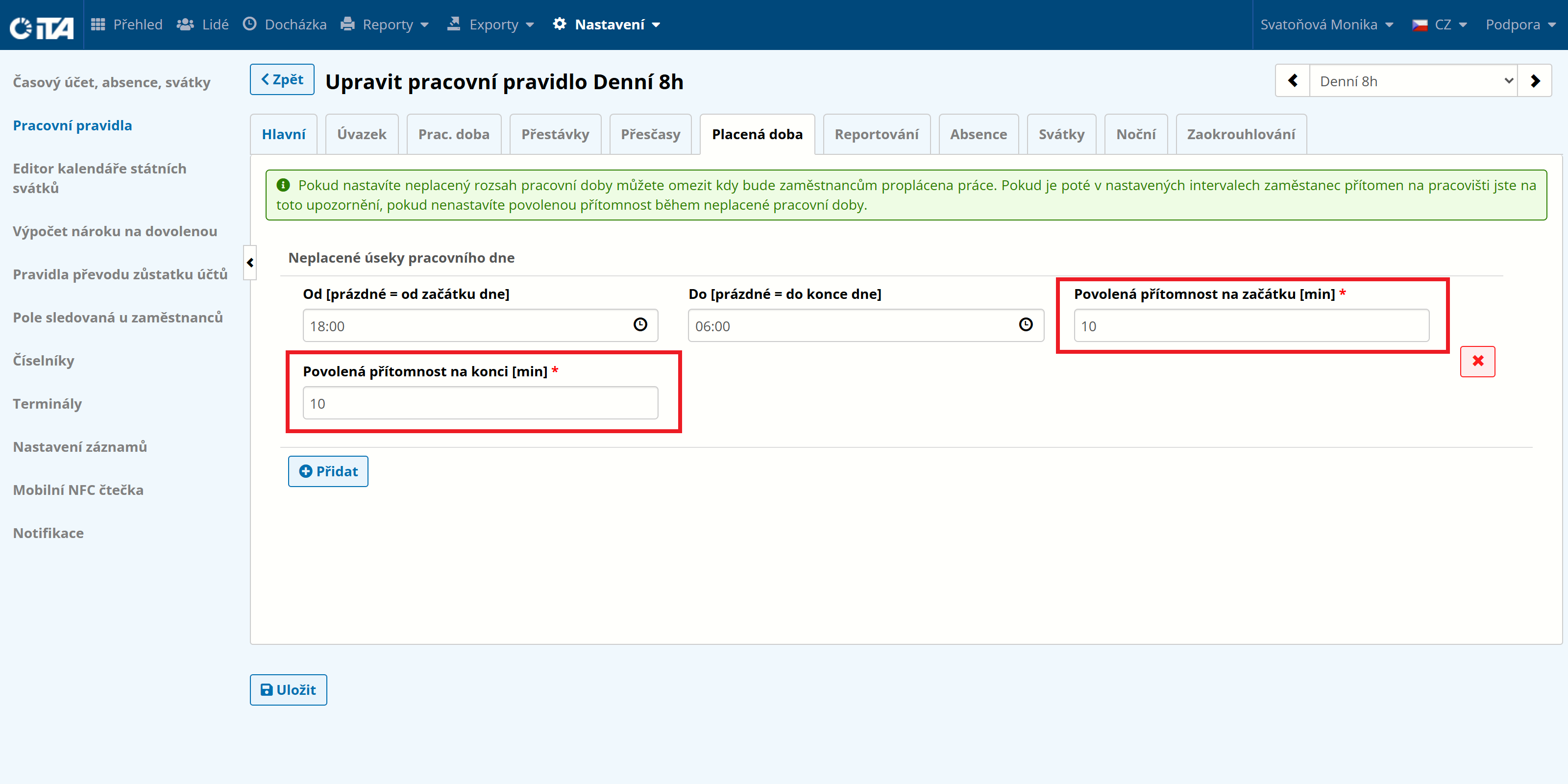
Allowed Presence at the Workplace#
This defines the arrival or departure time outside the paid working time range that is not considered a rule violation and is not shown in attendance as a violation. This is time during which the employee may already be at the workplace preparing for work, or may stay at work after the shift ends. Typically 10–30 minutes before or after working time ends.
1
Example:
Paid working time starts at 6:00 and ends at 18:00.
I know that some employees arrive at work earlier and I don’t want this arrival to be displayed as a violation of working time.
At the same time, I don’t want this time to count toward the employee’s hours worked.
By configuring the allowed presence at the workplace BEFORE/AFTER, I ensure that this earlier arrival or later departure is not reported as a violation of working time.
Reporting#
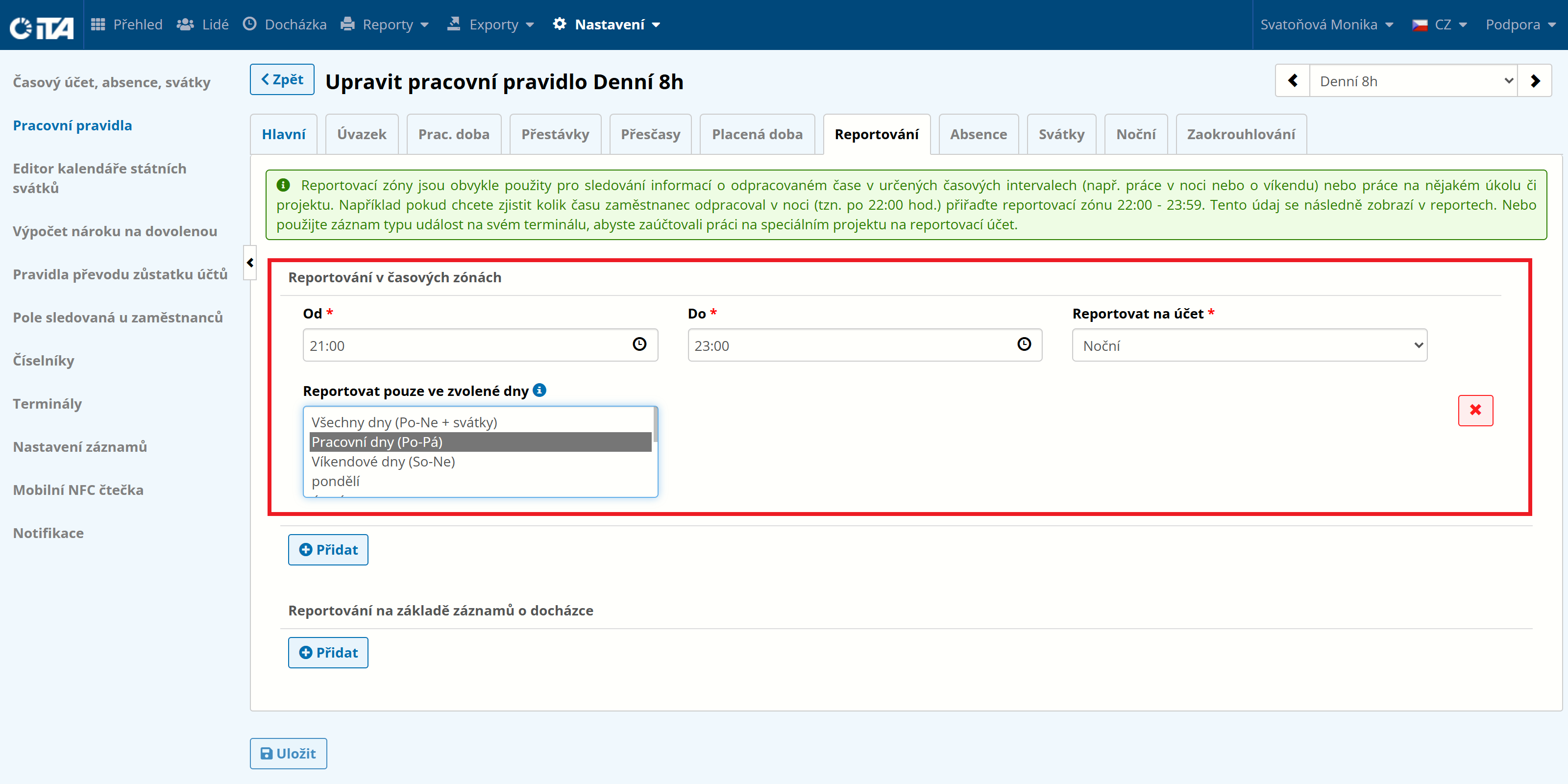
Reporting in Time Zones#
This tab is used only to monitor specific facts that may occur. It provides an overview of the desired information without affecting the hour split and calculations, and lets you effectively monitor employee behavior.
1
Example:
I want to know who is at work between 20:00 and 23:00 and how often, and to whom this counts as “night work”. This information helps me, for example, filter out unwanted frequent night work performed solely to earn the benefit.
Reporting Based on Attendance Records#
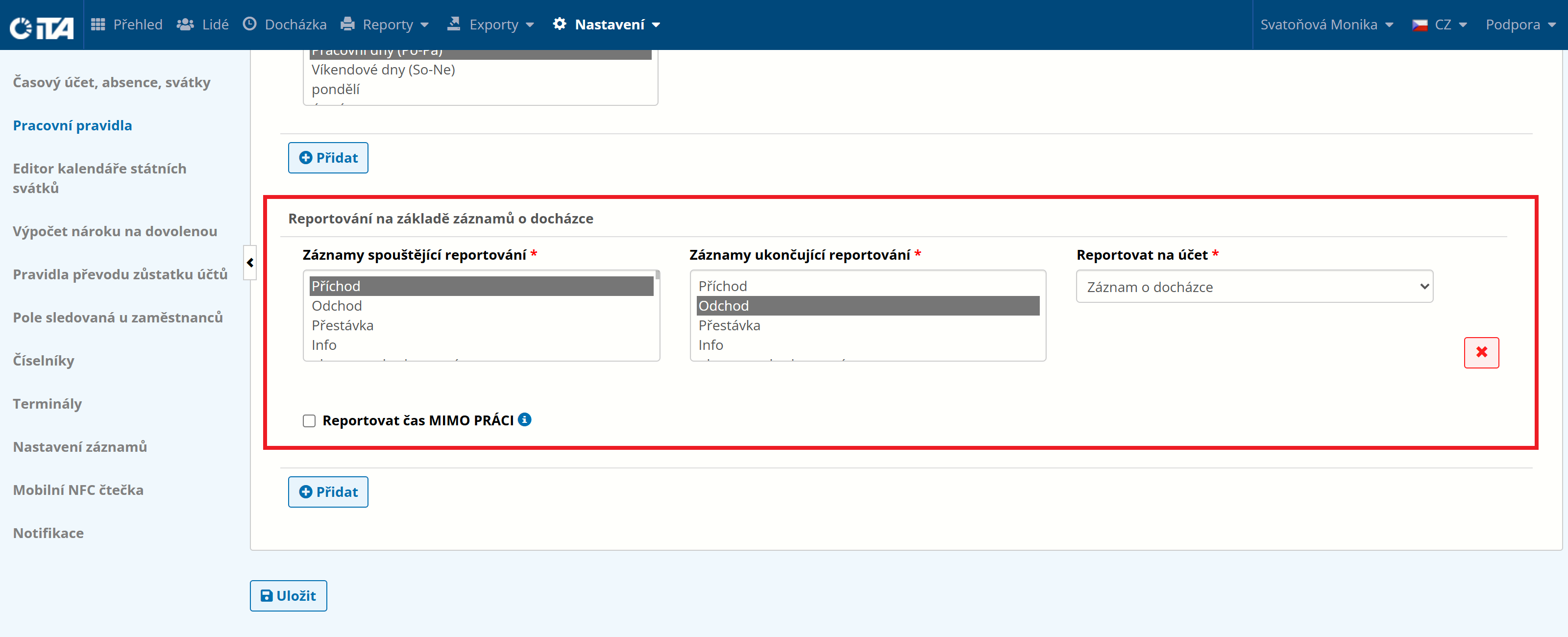
Here you can choose the event to be reported and the account on which this time is recorded.
When Report Time AWAY FROM WORK is selected, time spent away from work is reported (e.g. breaks, absences…).
Absences#
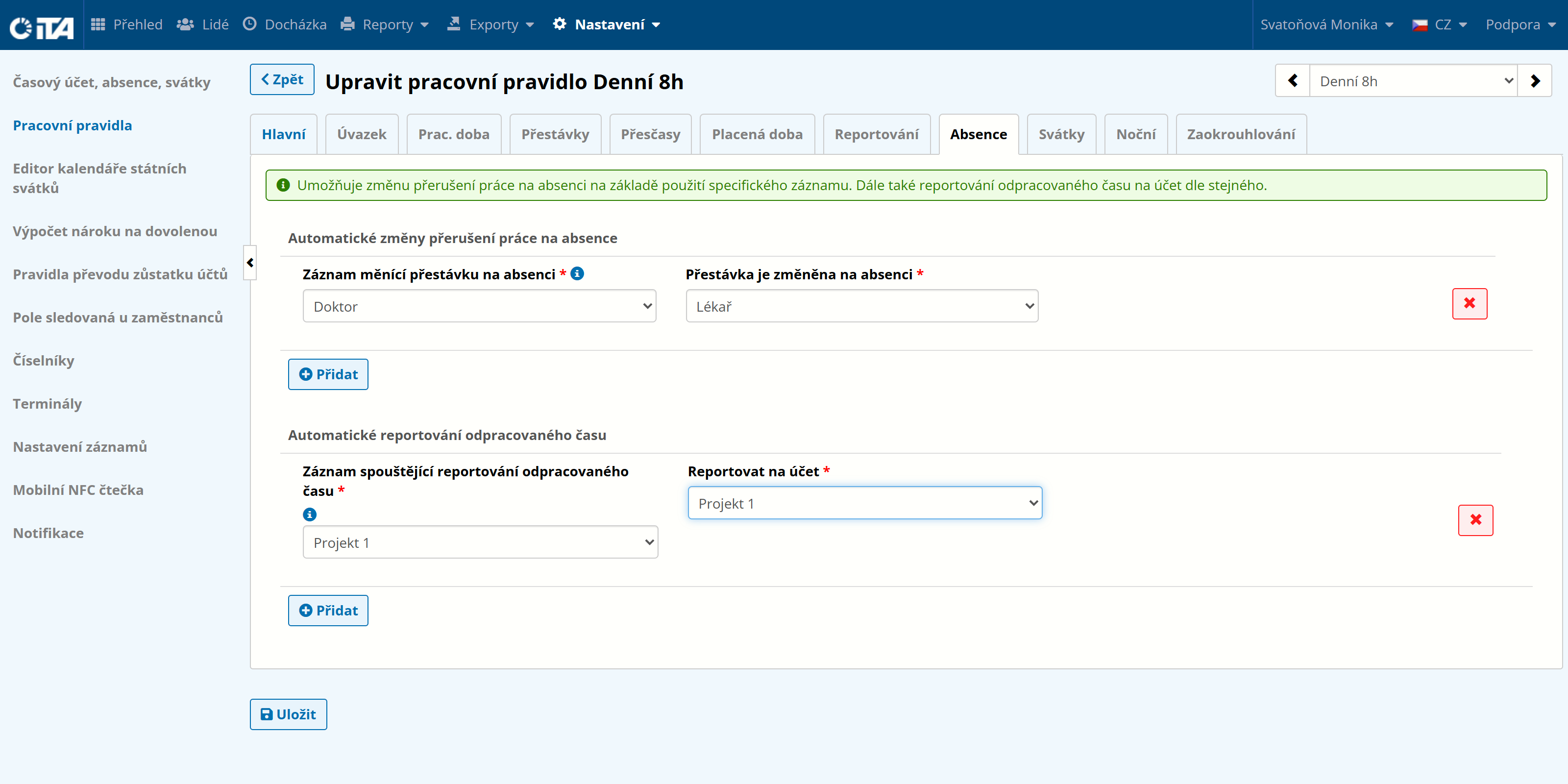
This tab allows a work interruption to be changed into an absence based on a specific record. It also allows reporting of time worked to an account based on the same configuration. This is the automatic change of an unpaid work interruption into an absence.
Automatic changes of work interruptions into absences
1
Example:
An employee leaves the workplace for a doctor’s appointment. When leaving, they select the “Doctor’s Appointment” record; upon returning, they select the “Arrival” record. The time between leaving the workplace and returning is automatically set as an absence.
Automatic reporting of time worked
1
Example:
An employee works on a project that needs to be recorded outside the regular records (working hours) on a reporting account.
Holidays#
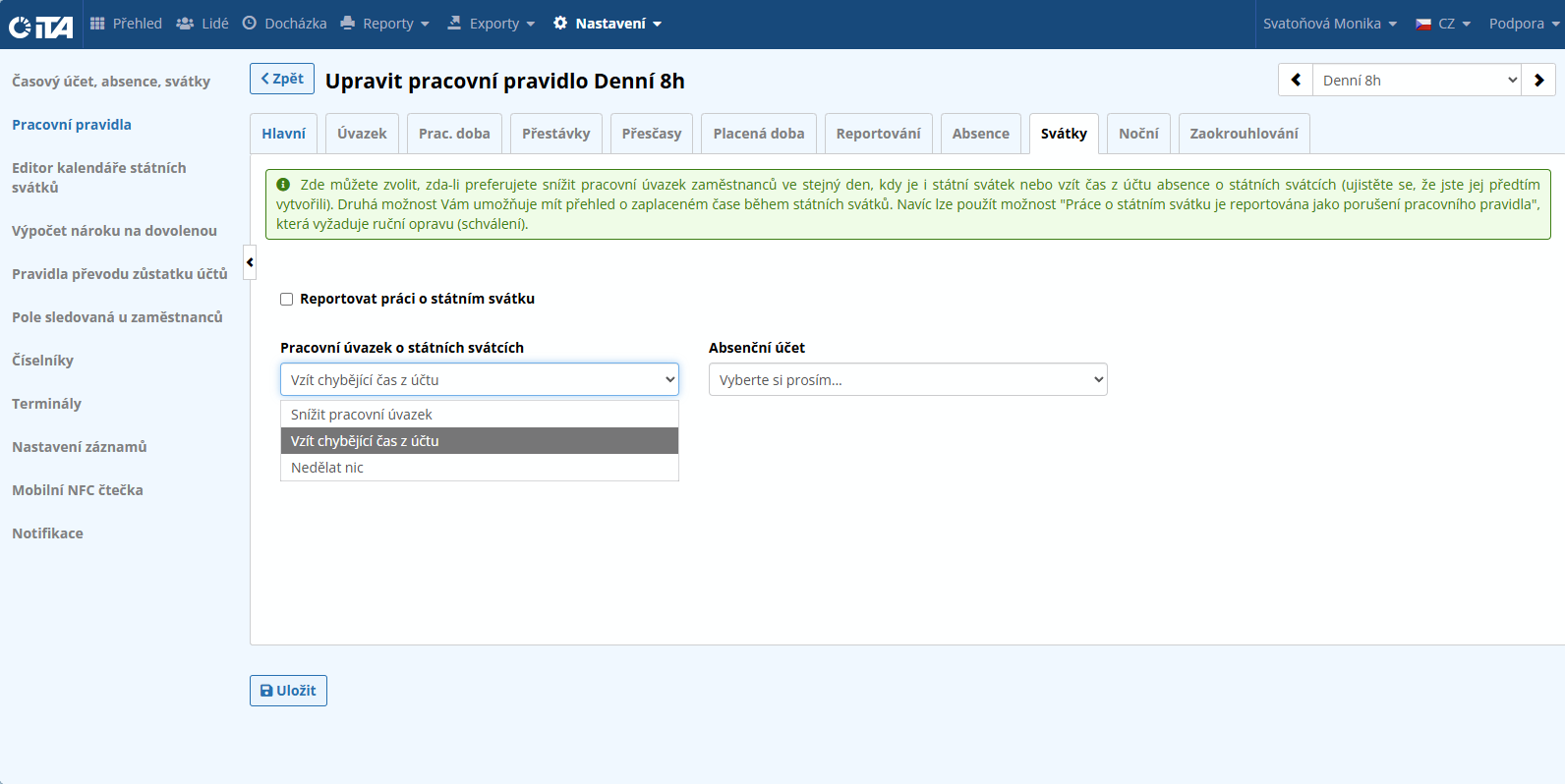
In the default configuration, a public holiday is treated as a day on which no work obligation arises. If your company has different needs, this setting lets you put the public holiday into working-day mode.
The option to record missing time to an absence account on public holidays is informational. By using it, you get an overview of the hours missing due to public holidays without registering a working-time violation for the employees. To use this option, create an account for absences on public holidays.
1
Example:
If a public holiday falls on a working day, the day is treated as a day off. If the “Report Work on Public Holiday” option is checked, the day is in working-day mode.
Night#
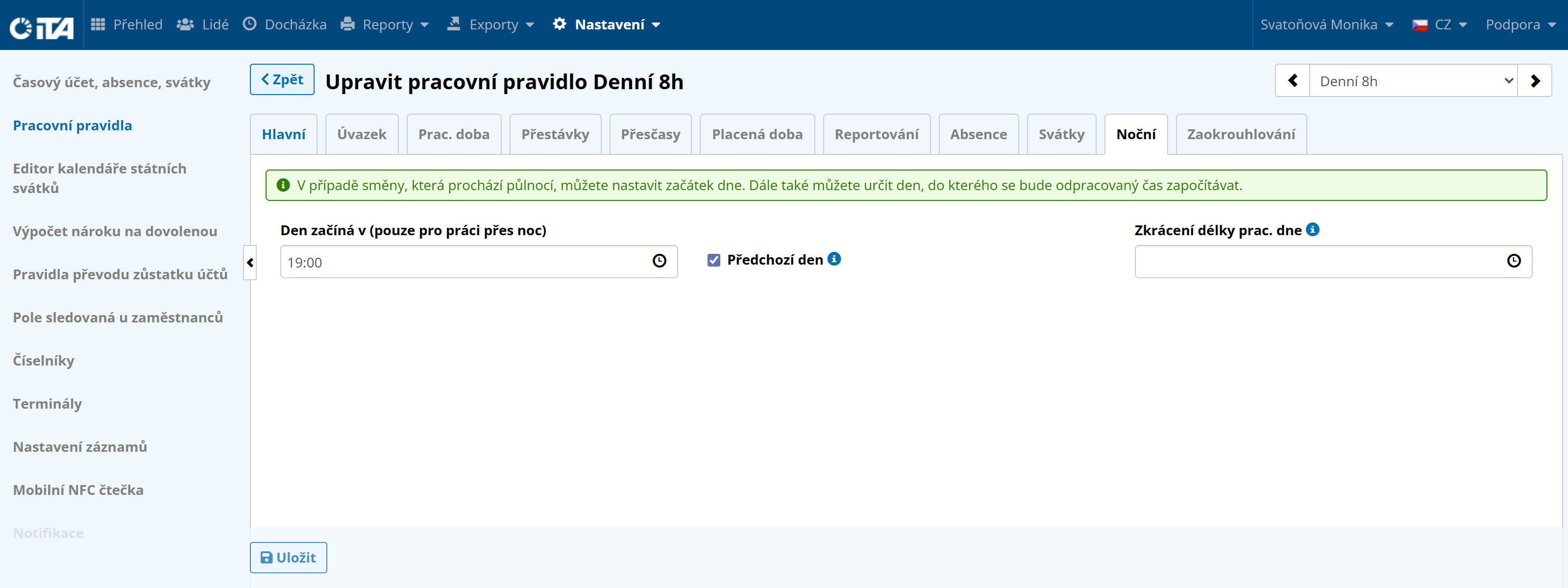
If your company has work spanning two days (i.e. across midnight), you need to configure which day the time worked is counted toward — the day of arrival, or the following day.
For this purpose, you define when the system transitions from one day to the next, in a way that covers the required shift of time worked at night. You can also configure shortening of the day length to less than 24 hours.
This setting can be useful when the rule is used together with a daily rules switcher, especially when, for example, an afternoon shift immediately follows a night shift.
1
Example:
An employee comes to work at 20:00 and stays until 5:00. The time worked should be counted toward the day of departure from work.
You configure that the new day for them starts not at midnight, but at 19:00 of the previous day.
We recommend setting a time earlier than when the employee’s shift starts, so that the system also accounts for a possible earlier arrival of the employee.
The “Previous day” checkbox therefore means that if the arrival is on 31 Jan at 20:00, the time worked is counted toward 1 Feb.
Rounding#
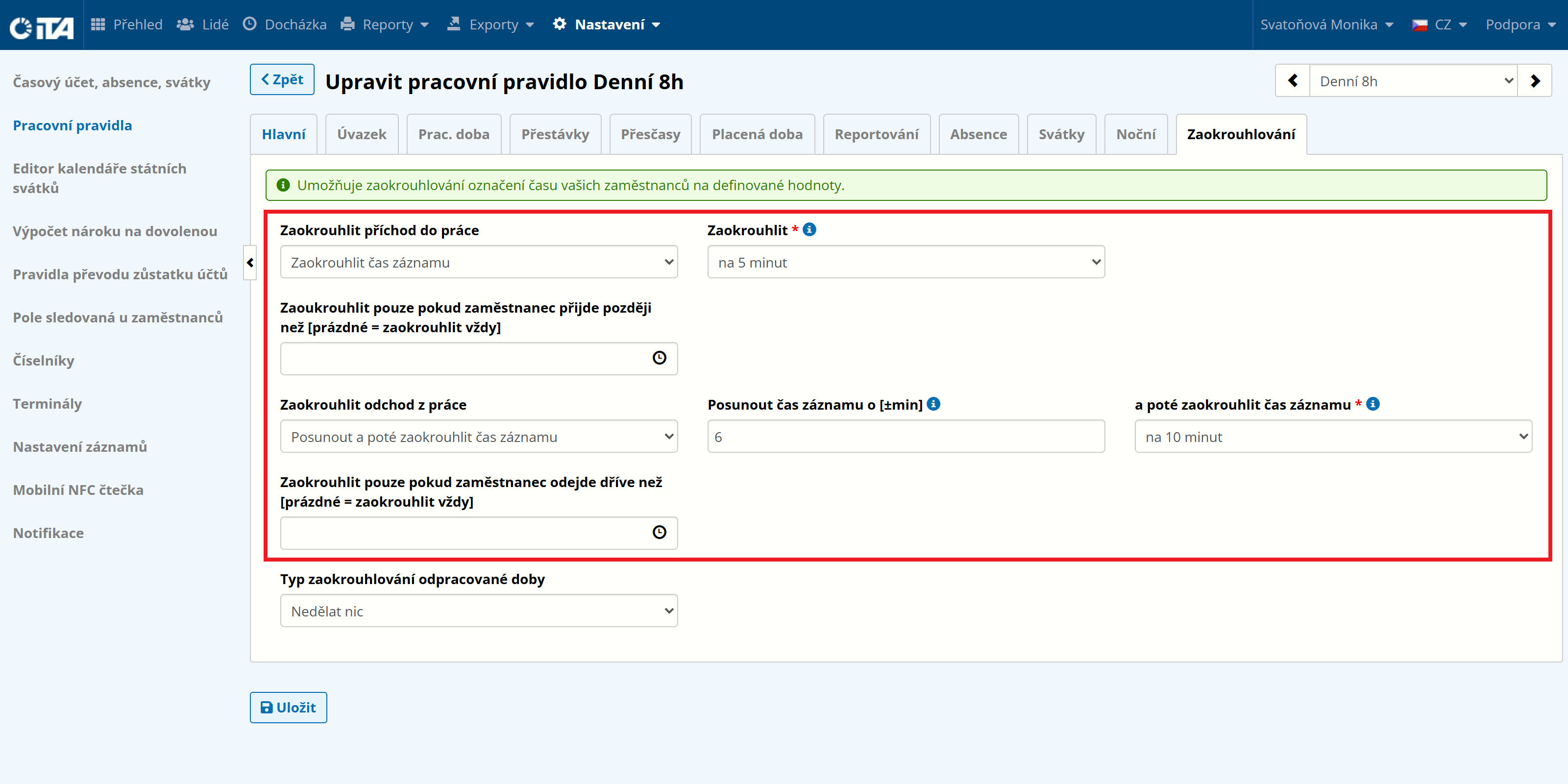
Rounding of Arrival and Departure Times#
These two functions round the times of arrival and departure. Arrival is rounded up to the nearest multiple of the chosen time, and departure is rounded down to the nearest multiple of the chosen time. This rule is always to the employer’s advantage.
The following options are available:
- Do nothing:
rounding is disabled
- Round record time:
rounds the time to the nearest multiple you choose.
- Shift record time:
shifts the record. A positive number shifts it forward, a negative number shifts it backward.
- Shift and then round record time:
a combination of rounding the record time and shifting the record time
Rounding of Hours Worked#
This rule rounds the total time worked, not just the arrival and departure times. Always to the employer’s advantage.
The following options are available:
- Do nothing:
no rule is created
- Round (after a defined time worked):
once the minimum hours worked is configured, you can choose to round this time. Example: if the employee works at least 7 hours, the time is rounded by 10 minutes.
- Round (within a range of hours worked):
lets you set the minimum and maximum hours worked for which to round. Example: if the employee works more than 8 hours and less than 10 hours, the time is rounded by 5 minutes.
When “Arrival and Departure Rounding” is combined with “Rounding of Hours Worked”, the system first rounds arrivals and departures and then rounds the hours worked based on those.
Procedure for the Daily Rules Switcher#
The daily rules switcher allows you to configure the conditions for shift operations in the company. To determine the appropriate shift, you define the time interval during which an arrival is evaluated as a morning, afternoon, or night shift.
Based on the rules configured this way, the system then selects the specific attendance evaluation mode for the employee. The daily rules switcher also handles the choice of which specific rule to apply in case of a full-day absence.
Click Create Rule:
Fill in the parameters:
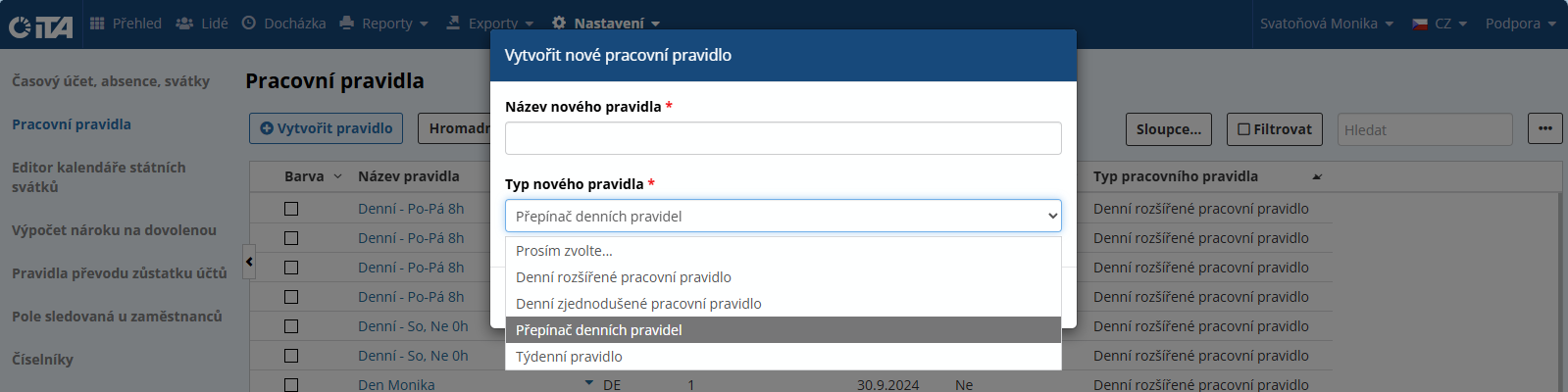
- New rule name:
Name the rule (we recommend short names)
- New rule type:
Daily rules switcher
Click Confirm.
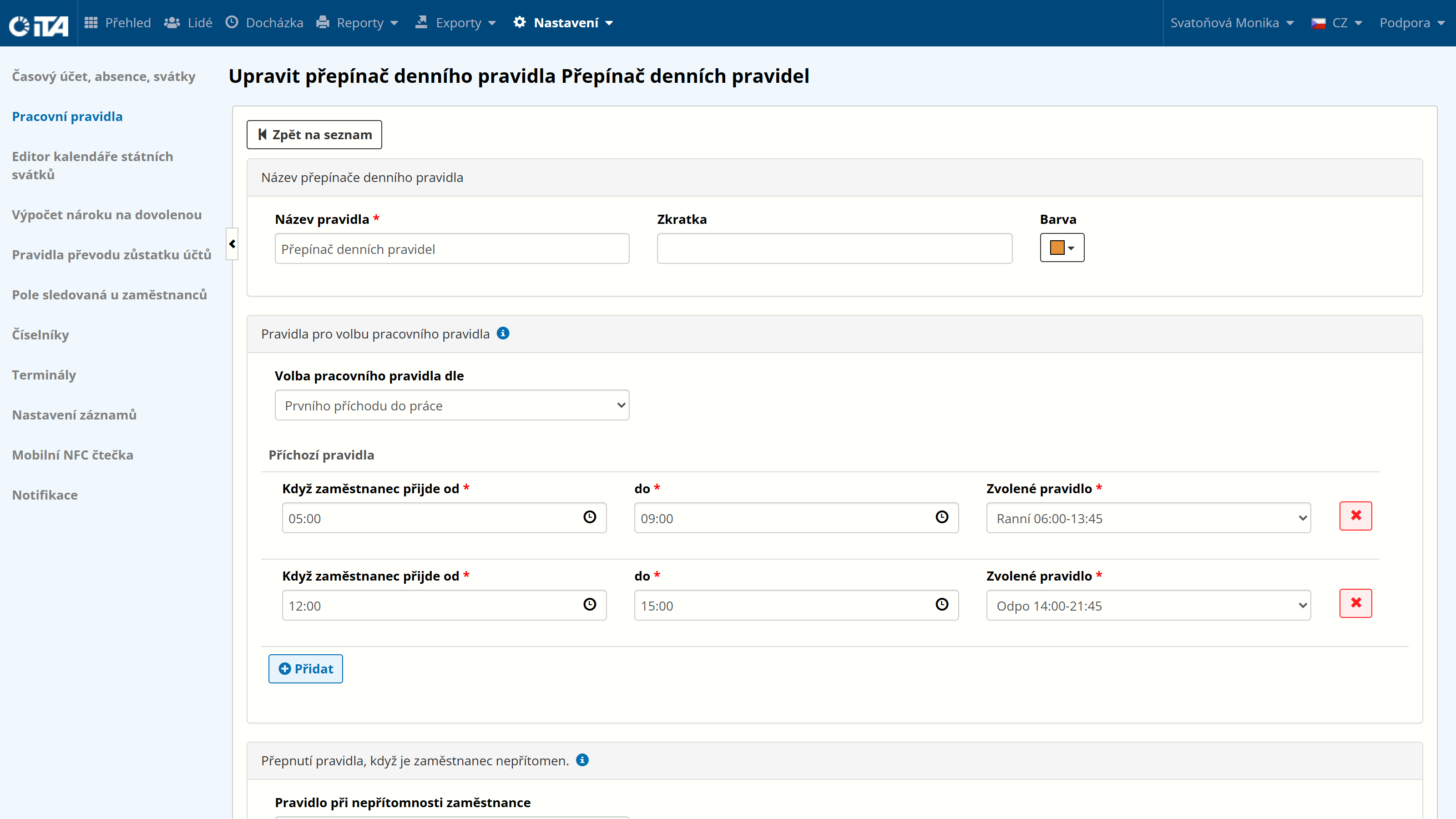
Rules for Selecting the Work Rule#
Set the range of arrival or departure times for shift operations and the shift each arrival/departure falls into.
1
Example:
If an employee arrives between 5:00 and 9:00, their attendance is assigned to the predefined “Morning Shift”. If they arrive between 12:00 and 15:00, the attendance is assigned to the predefined “Afternoon Shift”.
Switching the Rule When the Employee Is Absent#
If the employee does not come to work for an entire day, this function lets you predefine which rule should be applied. If they do not have a work obligation every day, this field can be left empty.
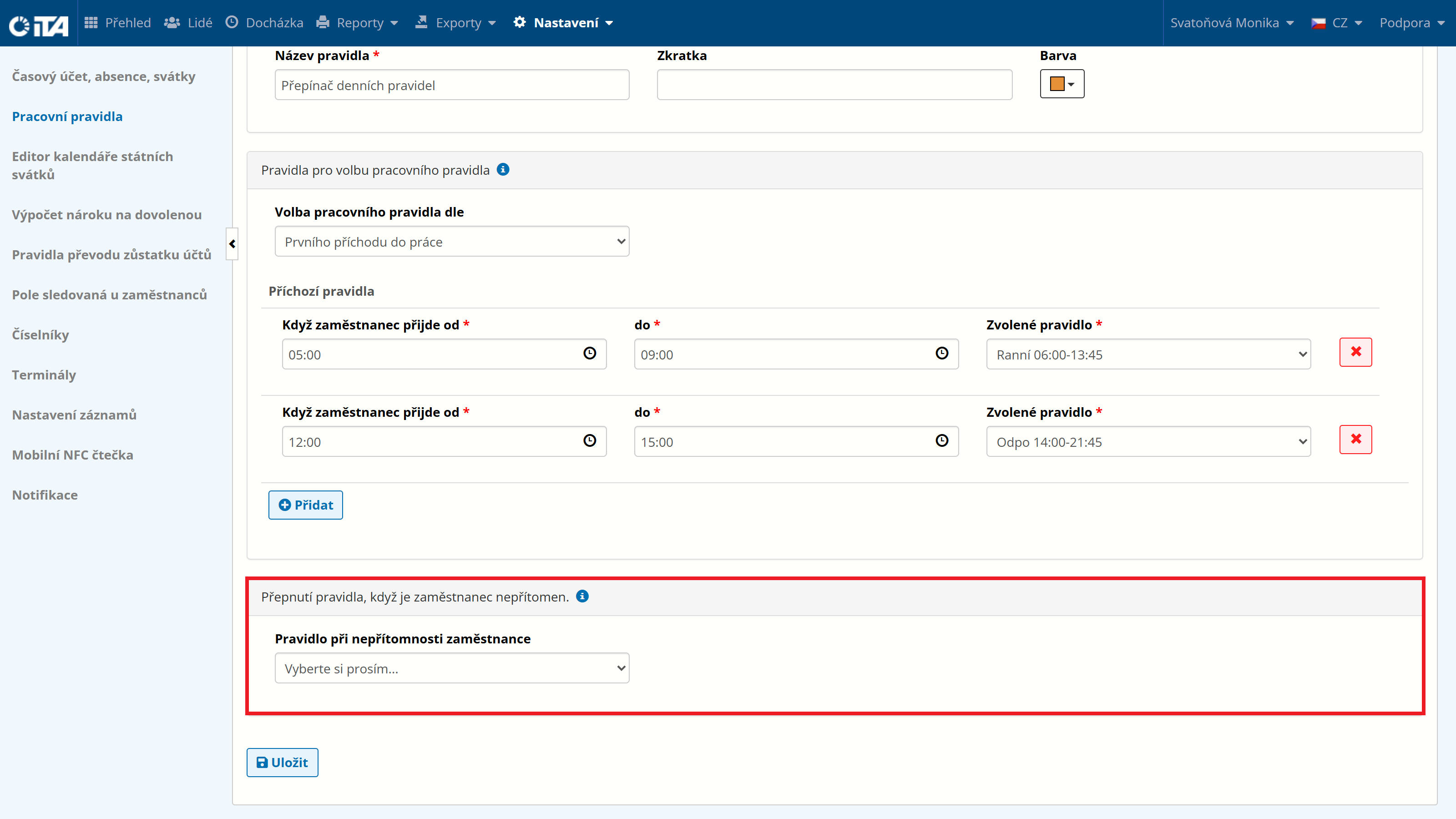
After configuring the daily rules switcher, click Save.
Procedure for a Weekly Rule#
A weekly rule adjusts how the employee’s attendance obligation is distributed throughout the work week. This lets you specify different requirements for specific days of the week — e.g. office days.
1
Example:
The company requires mandatory presence at the workplace on Monday and Tuesday from 8:00 to 16:00, and on other days only from 8:00 to 14:00. Within the weekly rule, I select from the portfolio of created daily rules and assign them to the corresponding days.
Click Create Rule:
Fill in the parameters:
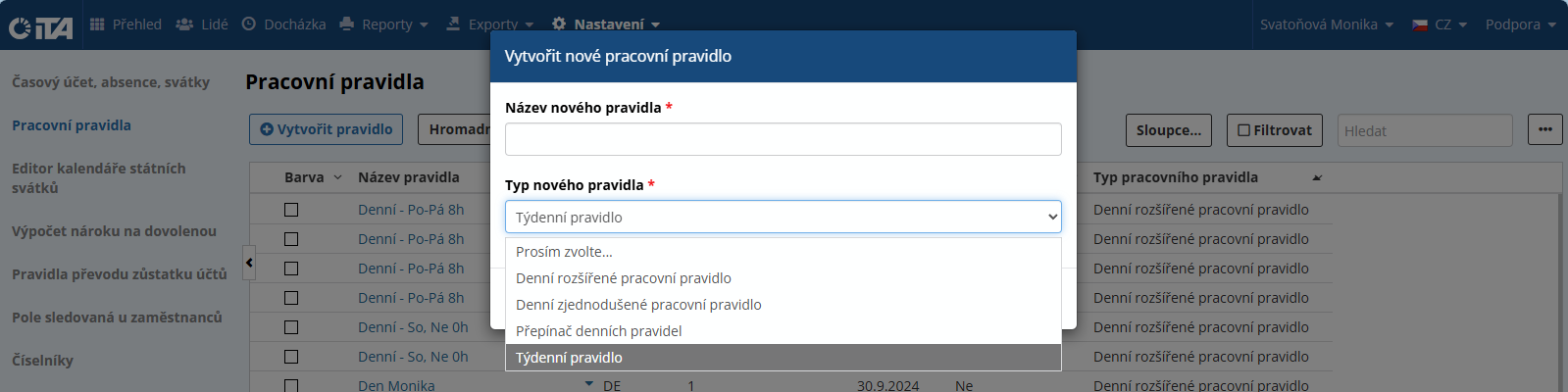
- New rule name:
Name the rule (we recommend short names)
- New rule type:
Weekly rule
Click Confirm.
Rule Configuration#
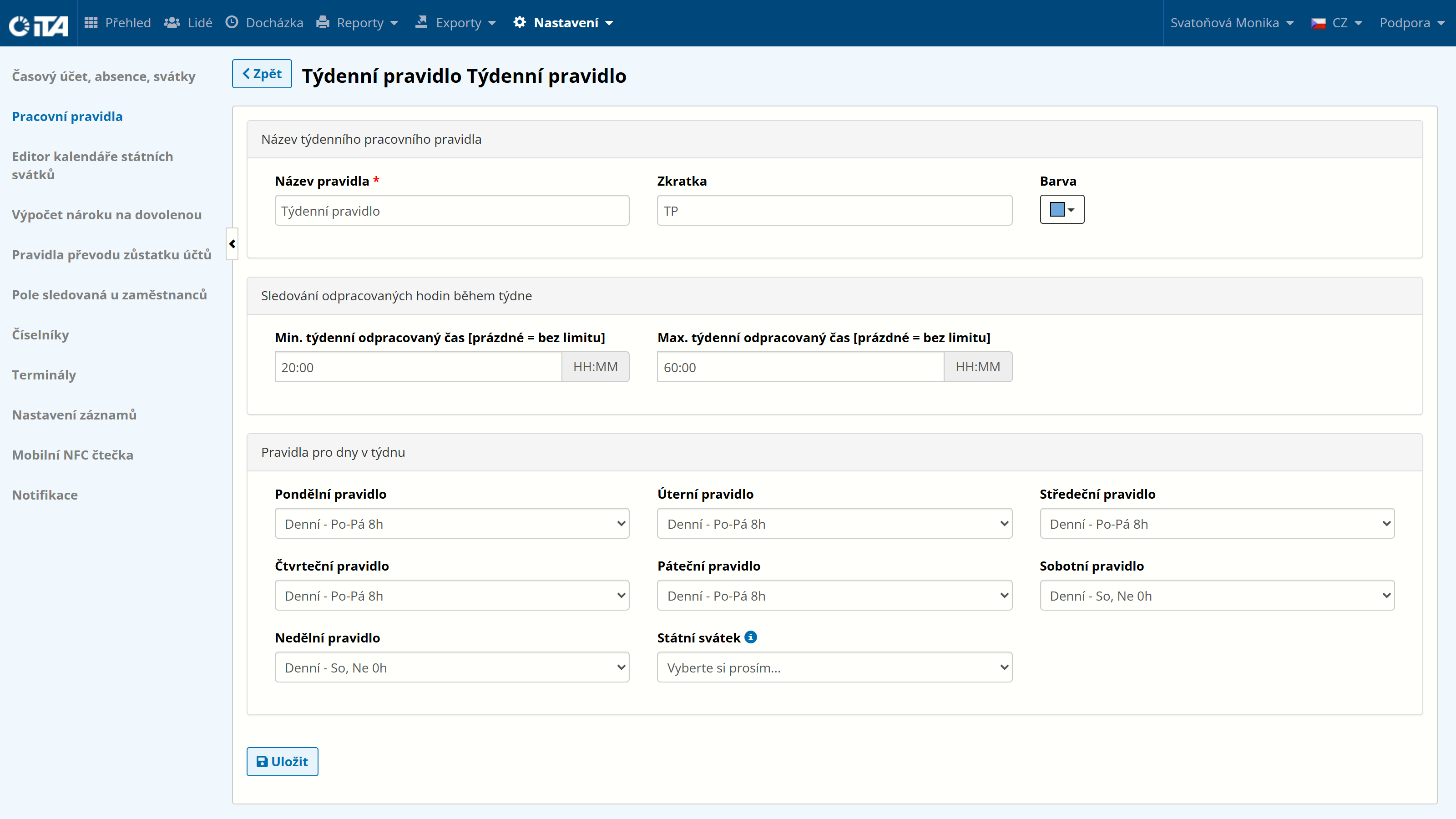
- Rules for days of the week:
For each day, select from the predefined daily rules.
1
Example:
The company requires mandatory presence at the workplace on Monday and Tuesday from 8:00 to 16:00, and on other days only from 8:00 to 14:00. Within the weekly rule, we select from the portfolio of created daily rules and assign them to the corresponding days.
After configuring the weekly rule, click Save.
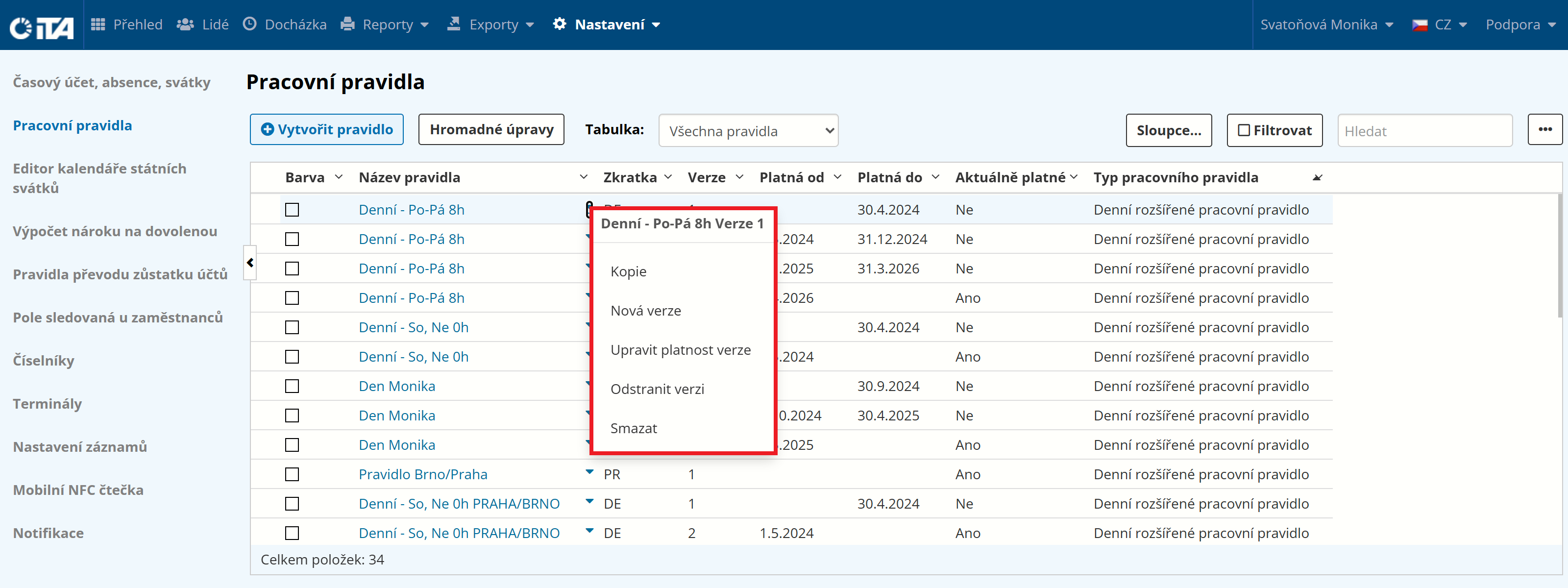
List of Created Work Rules#
In the displayed list of work rules, the following actions are available for each rule:
- Copy:
Creates a copy of the rule (recommended when creating similar rules)
- New version:
Creates a new version of an existing rule, effective from the chosen date
- Edit version validity:
Any edit is reflected wherever this rule is assigned
- Remove version:
Removes a version of the rule
- Delete:
Not recommended — when deleted, some already-configured rules may stop working