
Mobile NFC Reader#
→
In this module, you customize the settings for NFC tags and how they are used. The Mobile NFC Reader offers only those records that are configured in the Record Settings module.
Configuration Procedure#
Find the RFID number of the tag or card using a terminal, or a mobile phone with the Docházka iTA app.
Simply place the tag on the terminal or on the NFC reader of the mobile phone. The number appears on the terminal or mobile phone display.
Caution
On iOS, you must open the Docházka iTA app and choose READ TAG.
On the Mobile NFC Reader settings page, click NEW SETTING:
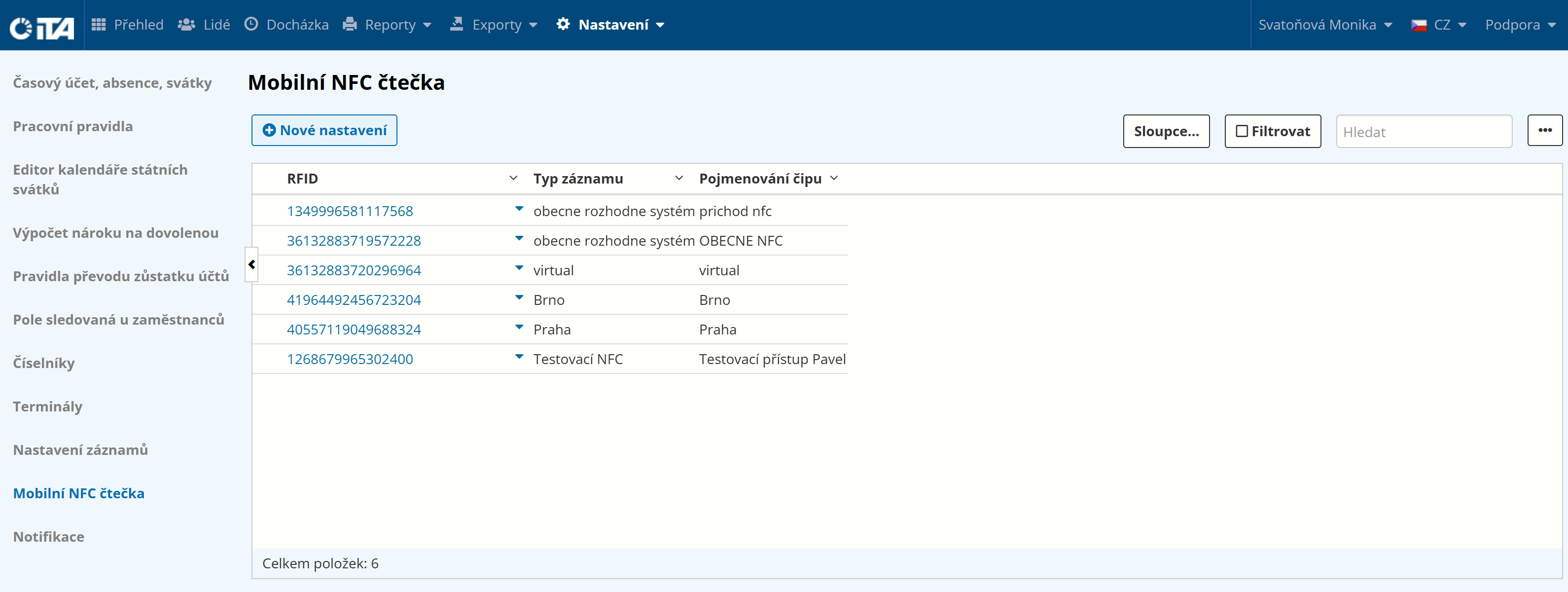
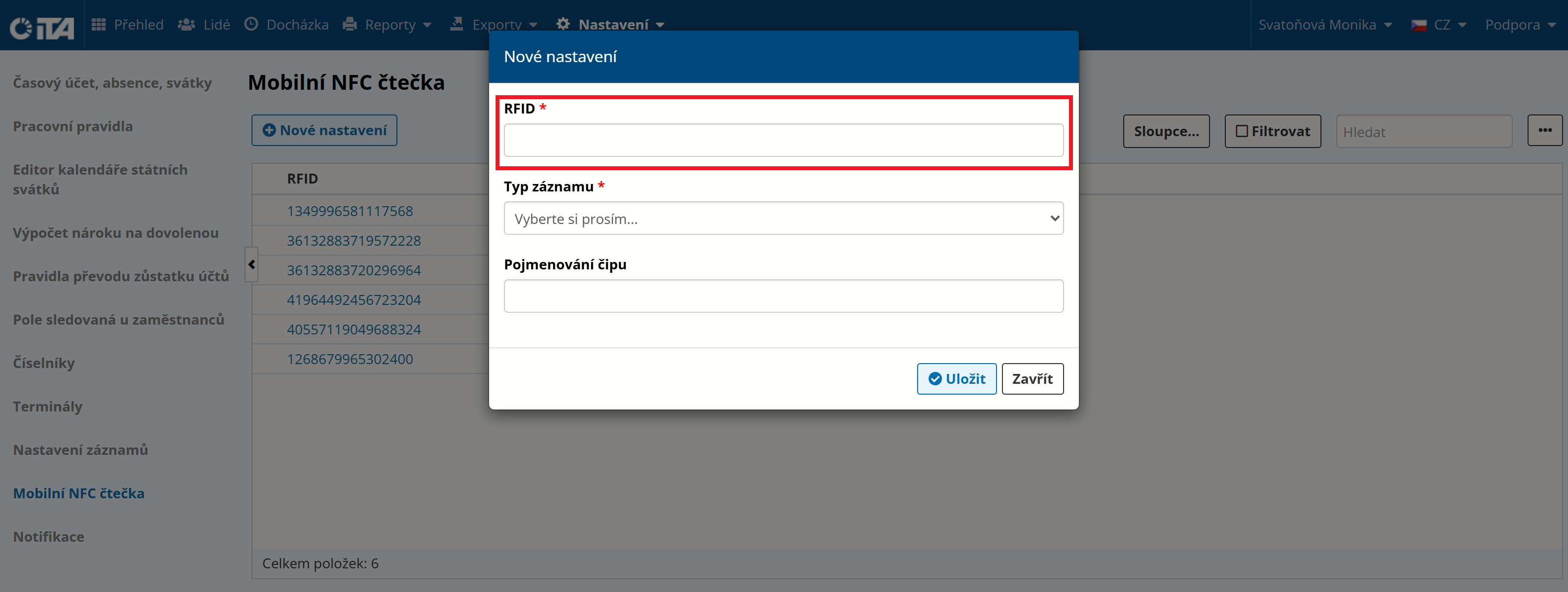
In the RFID field, enter the RFID number of the tag or card you found:
Select the record type:
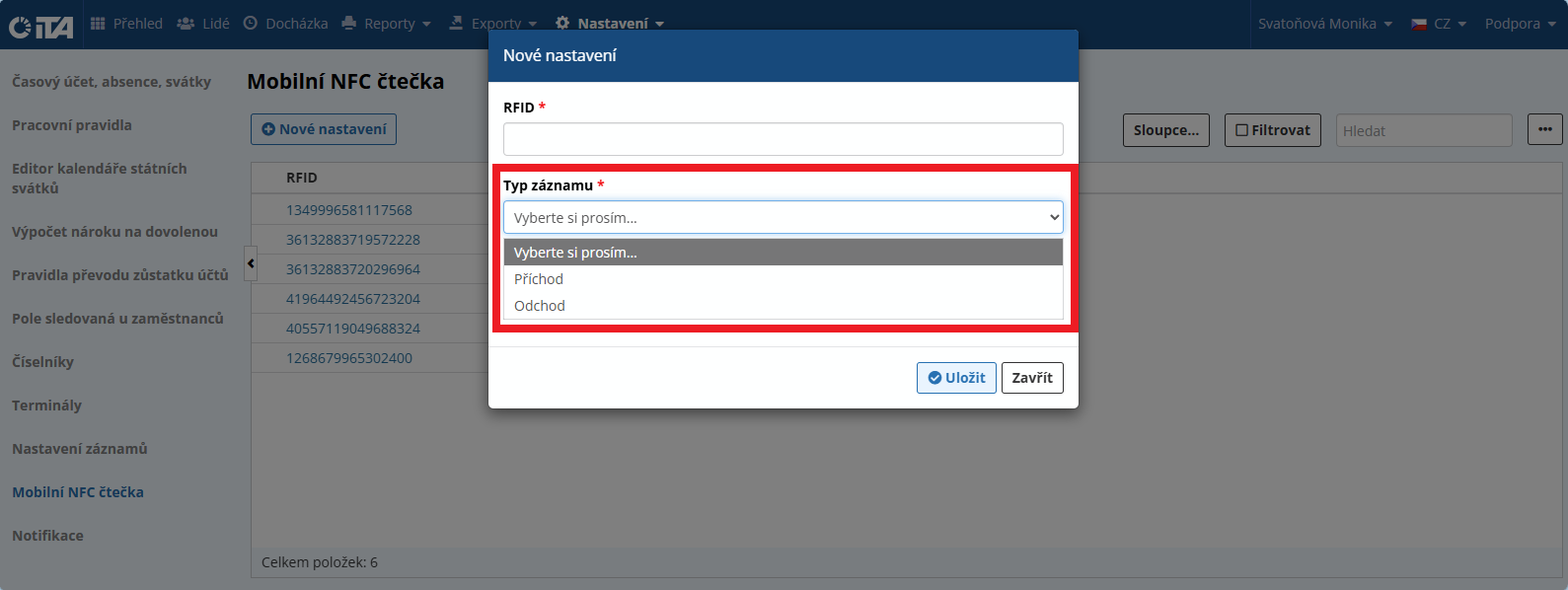
The records shown are those configured in the Record Settings module.
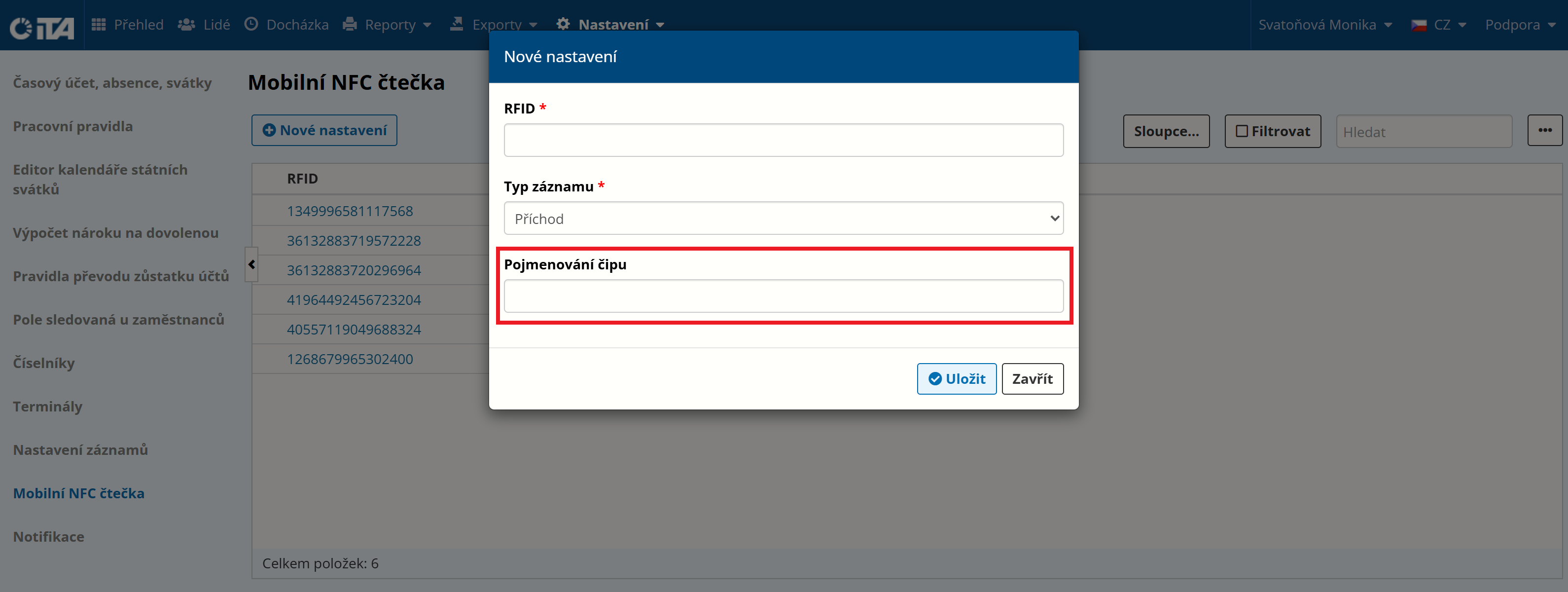
Optionally, give the tag a name for easier identification (e.g. main entrance, parking lot entrance, etc.):
Click Save.
App#
To use the Mobile NFC Reader, you need the MOBATIME Docházka iTA mobile app and a device that supports NFC data exchange.
The Docházka iTA app can be downloaded for free below: